> ## Documentation Index
> Fetch the complete documentation index at: https://docs.lightdash.com/llms.txt
> Use this file to discover all available pages before exploring further.
# Agent permissions
> Limit what AI agents can do, and choose who can use them
Beta Enterprise Agent permissions are behind the `agent-identity` feature flag. On Lightdash Cloud, ask Lightdash support to turn it on for your organization. On a self-hosted instance, [enable the flag](/self-host/enterprise-features/ai-agents#agent-identity). [What Beta means](/support/feature-maturity-levels).
By default, an agent can do what the person who asked can do. Agent permissions let an organization admin limit that: which actions agents may take, and who can use agents. Limits only reduce what agents can do. They never give a person more access than their roles allow.
[Agent identity](/agents/agent-identity) decides who agents run as in the warehouse. Agent permissions decide what agents may do in Lightdash.
## Choose what agents can do
Agent permissions are in the **Permissions** section of **Organization settings → Agents**, after the **Identity** section. Under **What agents can do**, choose one of three:
| Choice | What agents can do |
| - | - |
| **Same as the person** | Anything the person can do. Lightdash adds no limit. This is the choice until an admin saves another one. |
| **Read and query** | Find content, query data and export results. Agents change nothing. It allows **Read and discover**, **Query data**, **Export results** and **Raw SQL**. |
| **Custom** | What you leave ticked. Everything starts on, and you untick what agents must not do. |
A **Current** badge marks the saved choice.
**Read and query** does not make SQL read-only. Raw SQL runs with the warehouse permissions of the identity that agents run as, so limit writes in the warehouse. See [Agent identity](/agents/agent-identity).
### Custom
**Custom** shows one switch for each capability, in three groups. **Developer and admin** opens when you select it.
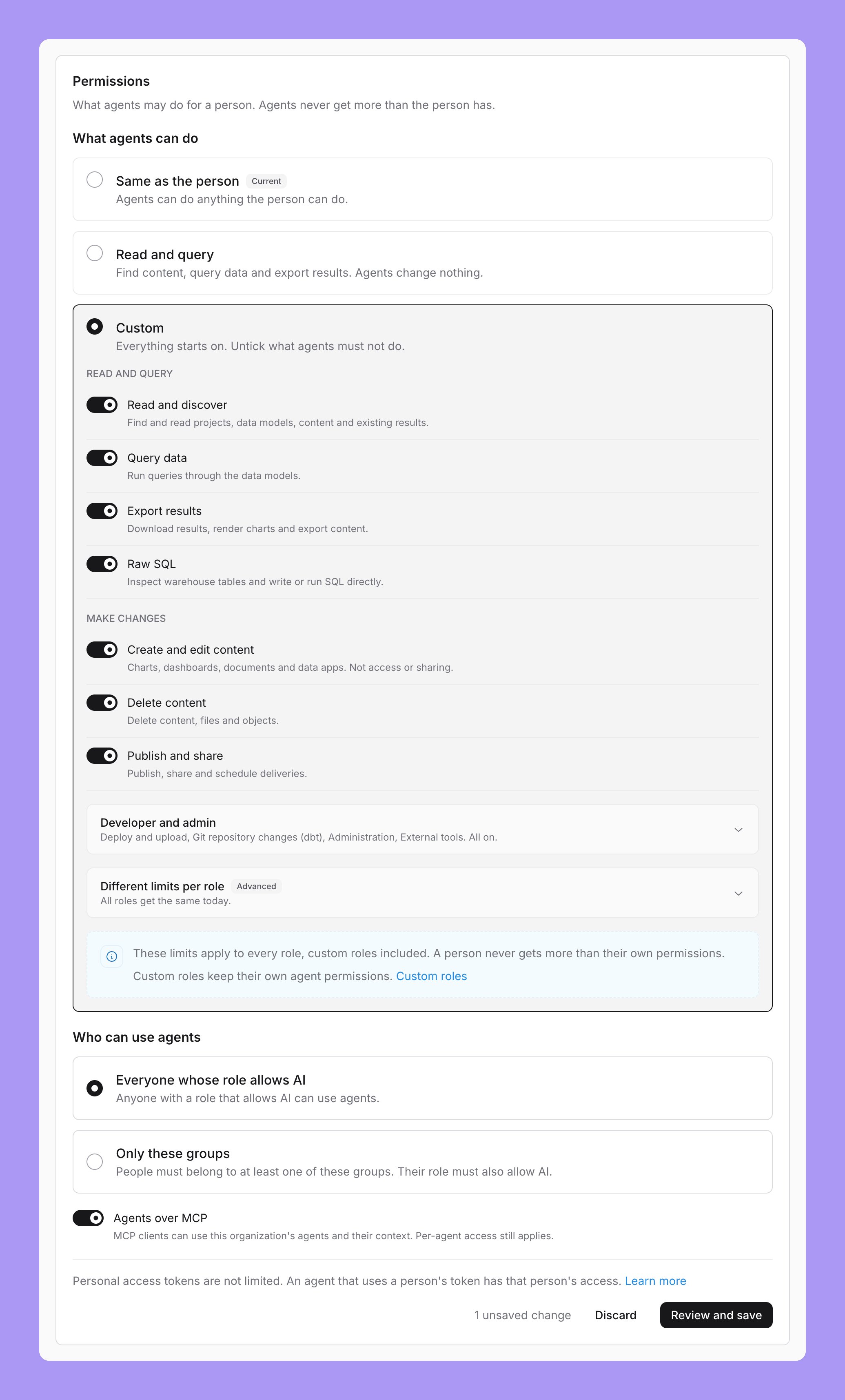 * **A switch applies to every role.** When you untick a capability, no agent can use it, whatever the person's role. This includes people with a [custom role](#custom-roles).
* **Unticking everything turns agents off.** The page says "Agents are turned off for everyone." No one can use Ask AI, the Slack agent, MCP clients or the CLI. People can still do the work themselves.
* **Different limits per role**, marked **Advanced**, has a table with one row for each role and one column for each capability. Clear a box to stop a capability for that role only. This table can only narrow the switches: it cannot allow a capability that is unticked. A person gets a capability when any one of their roles allows it.
When you choose **Custom** again after another choice, you get your saved Custom list back.
## Capabilities
An agent can do something only when the person's own permissions allow it and the limits allow the capability. Refusals name the capability.
| Group | Capability | Column in the per-role table | What it allows |
| - | - | - | - |
| Read and query | Read and discover | **Read** | Find and read projects, data models, content, context and existing query results. |
| Read and query | Query data | **Query** | Run queries through the data models and run saved content. |
| Read and query | Export results | **Export** | Download results, render charts and export to supported destinations. |
| Read and query | Raw SQL | **Raw SQL** | List warehouse tables and write or run SQL directly. |
| Make changes | Create and edit content | **Create / edit** | Create or edit charts, dashboards, documents and data apps. It does not change access, create spaces or share. |
| Make changes | Delete content | **Delete** | Delete content, files and objects. |
| Make changes | Publish and share | **Publish** | Publish, share or deliver content. |
| Developer and admin | Deploy and upload | **Deploy** | Deploy project changes and upload files. |
| Developer and admin | Git repository changes (dbt) | **dbt** | Change any file in the project's Git repository, and open, update or close pull requests. Not only dbt files. |
| Developer and admin | Administration | **Admin** | Administrative actions that agents may take. Actions reserved for people stay with people. |
| Developer and admin | External tools | **External tools** | Call tools enabled on a connected external service. It does not grant what those tools do. |
### Operations that need several capabilities
Some operations need more than one capability. Lightdash refuses the operation when any one of them is not allowed:
| Operation | Needs |
| - | - |
| Create or edit a scheduled delivery | Create and edit content and Publish and share |
| Sync to Google Sheets as code | Create and edit content and Publish and share |
| Run a saved SQL chart | Query data and Raw SQL |
| Create a SQL chart, or edit a saved SQL chart in any way | Create and edit content and Raw SQL |
| Delete or rename a file in the Git repository | Git repository changes (dbt) and Delete content |
| Pull content from Git | Git repository changes (dbt) and Create and edit content |
| Set up a preview deploy | Deploy and upload and Git repository changes (dbt) |
An agent that changes the Git repository needs Delete content only when its change deletes or renames a file. Lightdash checks the change before it commits or pushes anything.
### Refusals
When the organization's agent permissions block an action, the refusal says so, for example: "Your organization's agent permissions do not allow Raw SQL. Ask an admin to change Permissions on the Agents page." When the person's own roles block it, the refusal says: "Your roles do not allow" followed by the capability, and asks them to have an admin review their permissions.
An action can fail more than one check. Lightdash stops at the first check that fails, and the first line of the refusal names it. In the in-app chat and in [MCP](/agents/lightdash-mcp) clients, the refusal then lists everything else that blocks the action:
* **Also needed** names the other blockers, for example: "Also needed: Publish and share". A blocker is a capability from the table above, or another limit, such as "access to agents".
* **See why** links to [My agent identity](/agents/agent-identity#my-agent-identity).
So a person can ask an admin for every change in one request. When the action is in a project that the person cannot see, the refusal leaves out the blockers that belong to that project. Replies in Slack channels show only the first line, and embedded chat does not show the **See why** link.
### Turn off Raw SQL for agents
**Raw SQL** lets an agent list warehouse tables and run SQL outside the data models. An agent can use it when the person's own permissions allow raw SQL and the limits allow **Raw SQL**. A project needs no other setup.
To turn it off for every agent, choose **Custom**, untick **Raw SQL**, then review and save. Agents then get the refusal "Your organization's agent permissions do not allow Raw SQL."
## Who can use agents
Under **Who can use agents**, choose:
* **Everyone whose role allows AI.** Anyone with a role that allows AI can use agents.
* **Only these groups.** People must belong to at least one of the groups you choose. Their role must also allow AI. Only members of these groups can use Ask AI, the Slack agent, MCP clients and the CLI.
* **A switch applies to every role.** When you untick a capability, no agent can use it, whatever the person's role. This includes people with a [custom role](#custom-roles).
* **Unticking everything turns agents off.** The page says "Agents are turned off for everyone." No one can use Ask AI, the Slack agent, MCP clients or the CLI. People can still do the work themselves.
* **Different limits per role**, marked **Advanced**, has a table with one row for each role and one column for each capability. Clear a box to stop a capability for that role only. This table can only narrow the switches: it cannot allow a capability that is unticked. A person gets a capability when any one of their roles allows it.
When you choose **Custom** again after another choice, you get your saved Custom list back.
## Capabilities
An agent can do something only when the person's own permissions allow it and the limits allow the capability. Refusals name the capability.
| Group | Capability | Column in the per-role table | What it allows |
| - | - | - | - |
| Read and query | Read and discover | **Read** | Find and read projects, data models, content, context and existing query results. |
| Read and query | Query data | **Query** | Run queries through the data models and run saved content. |
| Read and query | Export results | **Export** | Download results, render charts and export to supported destinations. |
| Read and query | Raw SQL | **Raw SQL** | List warehouse tables and write or run SQL directly. |
| Make changes | Create and edit content | **Create / edit** | Create or edit charts, dashboards, documents and data apps. It does not change access, create spaces or share. |
| Make changes | Delete content | **Delete** | Delete content, files and objects. |
| Make changes | Publish and share | **Publish** | Publish, share or deliver content. |
| Developer and admin | Deploy and upload | **Deploy** | Deploy project changes and upload files. |
| Developer and admin | Git repository changes (dbt) | **dbt** | Change any file in the project's Git repository, and open, update or close pull requests. Not only dbt files. |
| Developer and admin | Administration | **Admin** | Administrative actions that agents may take. Actions reserved for people stay with people. |
| Developer and admin | External tools | **External tools** | Call tools enabled on a connected external service. It does not grant what those tools do. |
### Operations that need several capabilities
Some operations need more than one capability. Lightdash refuses the operation when any one of them is not allowed:
| Operation | Needs |
| - | - |
| Create or edit a scheduled delivery | Create and edit content and Publish and share |
| Sync to Google Sheets as code | Create and edit content and Publish and share |
| Run a saved SQL chart | Query data and Raw SQL |
| Create a SQL chart, or edit a saved SQL chart in any way | Create and edit content and Raw SQL |
| Delete or rename a file in the Git repository | Git repository changes (dbt) and Delete content |
| Pull content from Git | Git repository changes (dbt) and Create and edit content |
| Set up a preview deploy | Deploy and upload and Git repository changes (dbt) |
An agent that changes the Git repository needs Delete content only when its change deletes or renames a file. Lightdash checks the change before it commits or pushes anything.
### Refusals
When the organization's agent permissions block an action, the refusal says so, for example: "Your organization's agent permissions do not allow Raw SQL. Ask an admin to change Permissions on the Agents page." When the person's own roles block it, the refusal says: "Your roles do not allow" followed by the capability, and asks them to have an admin review their permissions.
An action can fail more than one check. Lightdash stops at the first check that fails, and the first line of the refusal names it. In the in-app chat and in [MCP](/agents/lightdash-mcp) clients, the refusal then lists everything else that blocks the action:
* **Also needed** names the other blockers, for example: "Also needed: Publish and share". A blocker is a capability from the table above, or another limit, such as "access to agents".
* **See why** links to [My agent identity](/agents/agent-identity#my-agent-identity).
So a person can ask an admin for every change in one request. When the action is in a project that the person cannot see, the refusal leaves out the blockers that belong to that project. Replies in Slack channels show only the first line, and embedded chat does not show the **See why** link.
### Turn off Raw SQL for agents
**Raw SQL** lets an agent list warehouse tables and run SQL outside the data models. An agent can use it when the person's own permissions allow raw SQL and the limits allow **Raw SQL**. A project needs no other setup.
To turn it off for every agent, choose **Custom**, untick **Raw SQL**, then review and save. Agents then get the refusal "Your organization's agent permissions do not allow Raw SQL."
## Who can use agents
Under **Who can use agents**, choose:
* **Everyone whose role allows AI.** Anyone with a role that allows AI can use agents.
* **Only these groups.** People must belong to at least one of the groups you choose. Their role must also allow AI. Only members of these groups can use Ask AI, the Slack agent, MCP clients and the CLI.
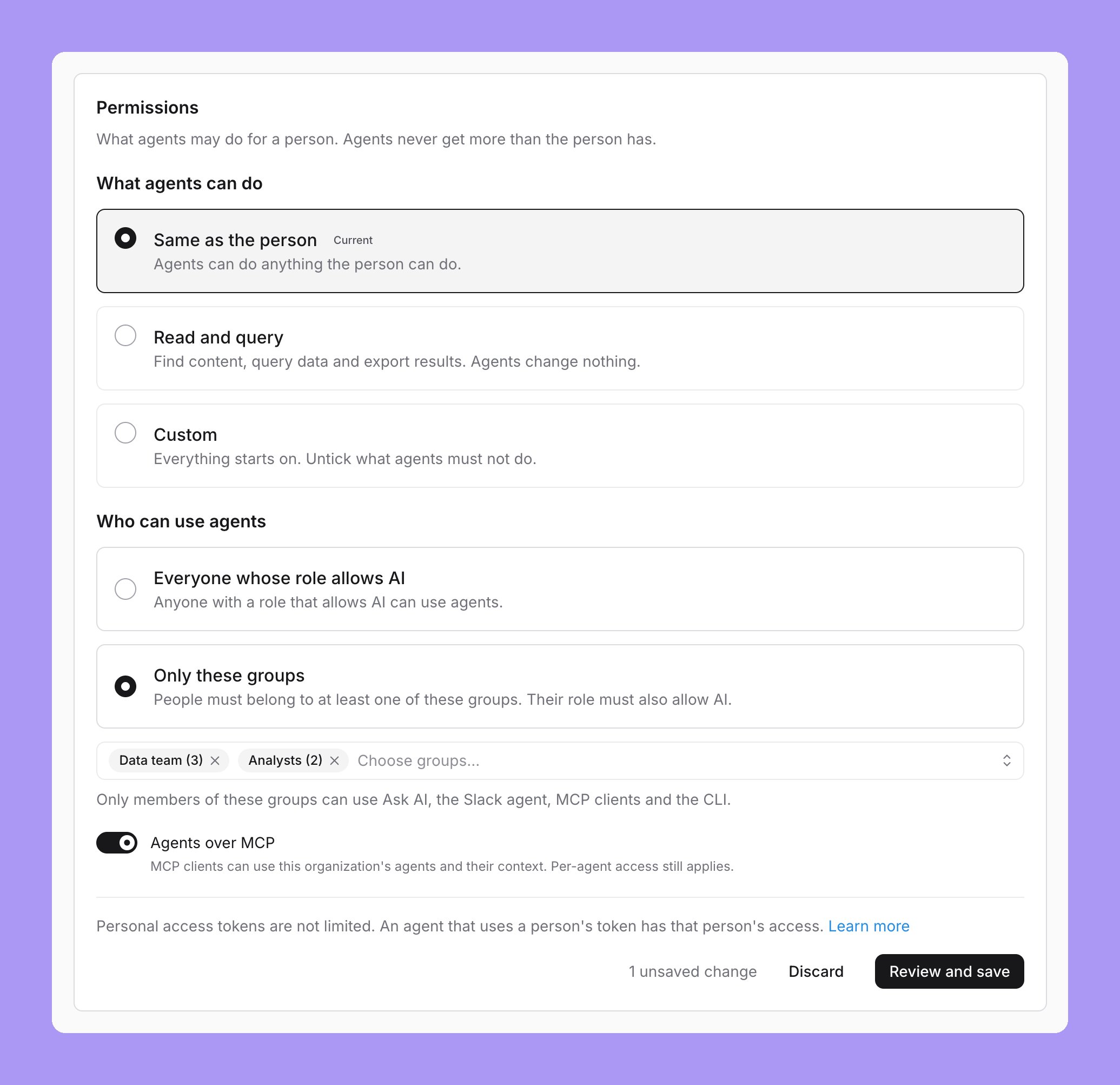 You choose people by [group](/workspace-admin/manage-groups) only. This limit applies with every choice under **What agents can do**, also with **Same as the person**.
* The **Who can use agents** row shows only when groups are available to your organization.
* **Only these groups** needs at least one group.
* When every group you chose is deleted, the page warns "No one can use agents. All chosen groups are deleted." Choose other groups, or **Everyone whose role allows AI**.
## Review and save
Changes under **What agents can do** and **Who can use agents** are not saved one at a time. The page counts them, for example "4 unsaved changes". **Discard** goes back to the saved state.
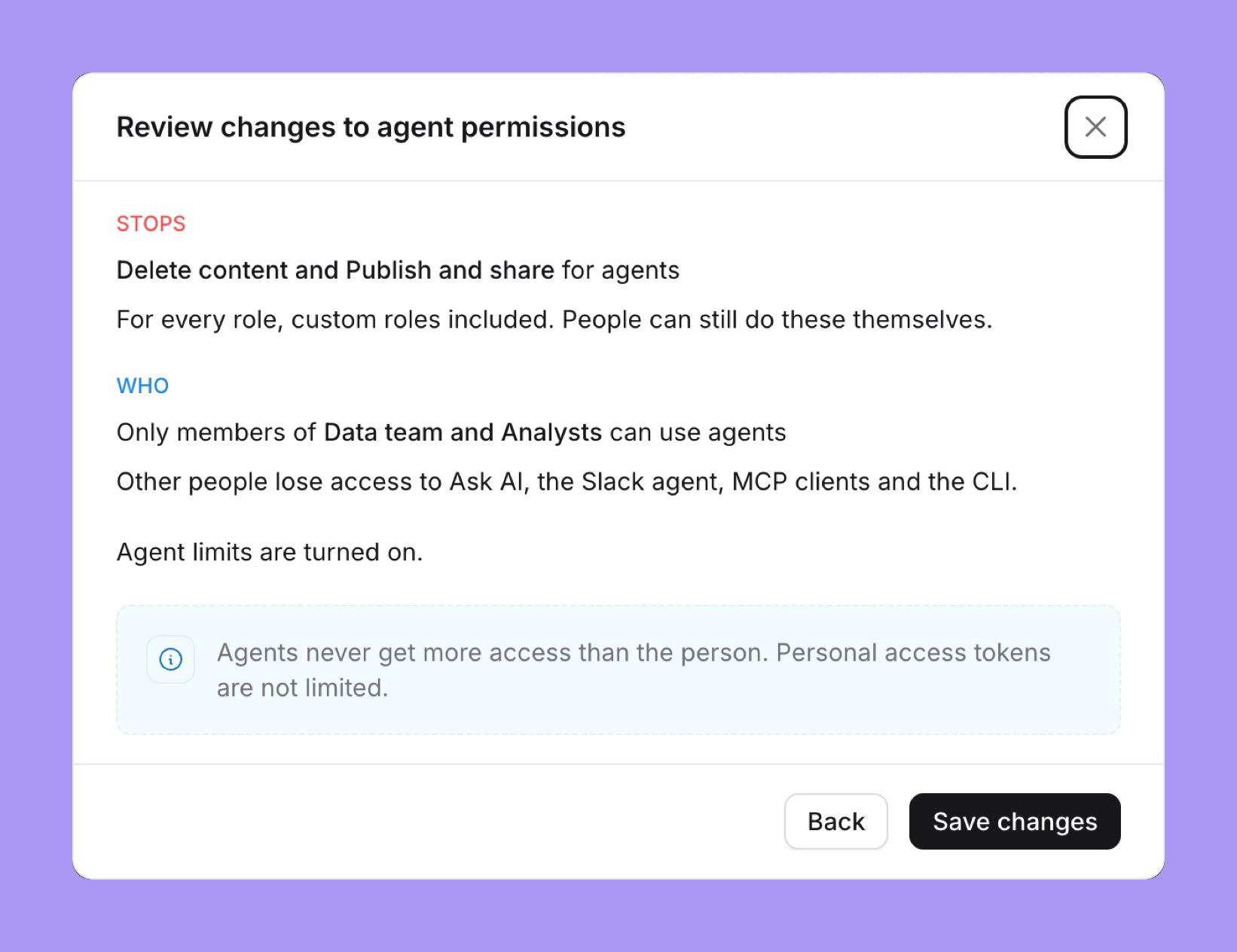
The **Review changes to agent permissions** dialog opens.
**STOPS** lists what agents can no longer do, **ALLOWS** lists what they can do again, and **WHO** says who can use agents. When every capability is unticked, it says "Agents are turned off for everyone".
Select **Save changes**. **Back** returns to the page and keeps your changes.
You choose people by [group](/workspace-admin/manage-groups) only. This limit applies with every choice under **What agents can do**, also with **Same as the person**.
* The **Who can use agents** row shows only when groups are available to your organization.
* **Only these groups** needs at least one group.
* When every group you chose is deleted, the page warns "No one can use agents. All chosen groups are deleted." Choose other groups, or **Everyone whose role allows AI**.
## Review and save
Changes under **What agents can do** and **Who can use agents** are not saved one at a time. The page counts them, for example "4 unsaved changes". **Discard** goes back to the saved state.
The **Review changes to agent permissions** dialog opens.
**STOPS** lists what agents can no longer do, **ALLOWS** lists what they can do again, and **WHO** says who can use agents. When every capability is unticked, it says "Agents are turned off for everyone".
Select **Save changes**. **Back** returns to the page and keeps your changes.
 If another admin saves first, an "Agent permissions changed" warning shows. Your unsaved changes stay on the page. Select **Reload latest** to discard them and load the saved permissions.
## Agents over MCP
The **Agents over MCP** switch lets MCP clients use the organization's agents and their context. It is about [MCP](/agents/lightdash-mcp#using-ai-agent-context) only: turning it off does not stop Ask AI or the Slack agent. To turn agents off everywhere, choose **Custom** and untick every capability.
* The switch saves at once. It is not part of **Review and save**.
* It shows only to people who can change the setting.
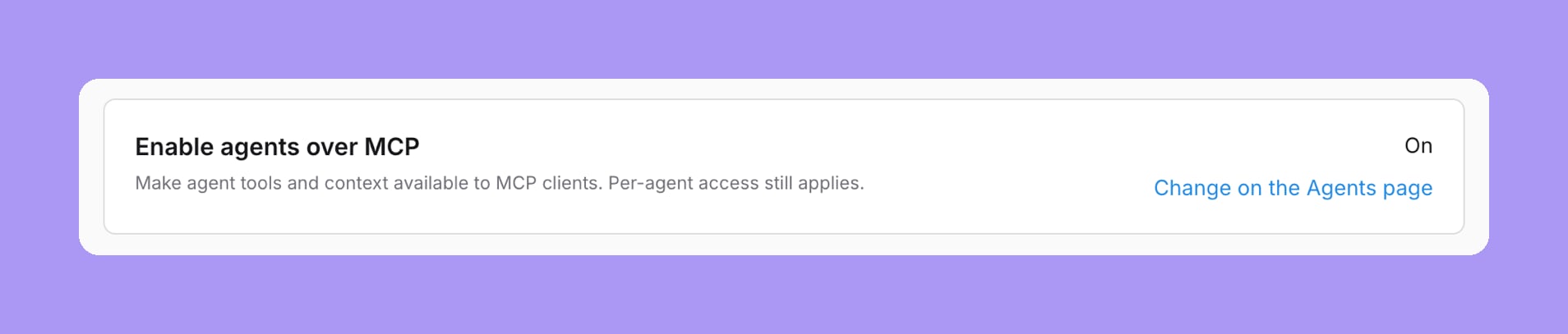
* For these people, **Settings → MCP → General** shows **Enable agents over MCP** as **On** or **Off**, with a **Change on the Agents page** link.
* **Allow content changes via MCP** stays on **Settings → MCP → General**.
If another admin saves first, an "Agent permissions changed" warning shows. Your unsaved changes stay on the page. Select **Reload latest** to discard them and load the saved permissions.
## Agents over MCP
The **Agents over MCP** switch lets MCP clients use the organization's agents and their context. It is about [MCP](/agents/lightdash-mcp#using-ai-agent-context) only: turning it off does not stop Ask AI or the Slack agent. To turn agents off everywhere, choose **Custom** and untick every capability.
* The switch saves at once. It is not part of **Review and save**.
* It shows only to people who can change the setting.
* For these people, **Settings → MCP → General** shows **Enable agents over MCP** as **On** or **Off**, with a **Change on the Agents page** link.
* **Allow content changes via MCP** stays on **Settings → MCP → General**.
 ## Custom roles
Enterprise
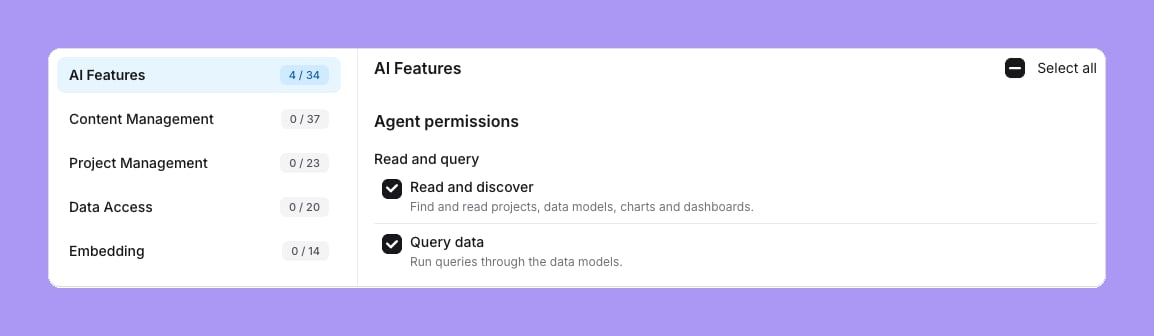
[Custom roles](/workspace-admin/custom-roles) have an **Agent permissions** group in the **AI Features** section of the role editor, with the 11 capabilities above. A new custom role starts with **Read and discover**, **Query data**, **Export results** and **Raw SQL** on.
Custom roles keep their own agent permissions. The organization's choice under **What agents can do** can only narrow them: an agent of a person with a custom role gets what the role allows, without the capabilities that the organization unticked.
## Custom roles
Enterprise
[Custom roles](/workspace-admin/custom-roles) have an **Agent permissions** group in the **AI Features** section of the role editor, with the 11 capabilities above. A new custom role starts with **Read and discover**, **Query data**, **Export results** and **Raw SQL** on.
Custom roles keep their own agent permissions. The organization's choice under **What agents can do** can only narrow them: an agent of a person with a custom role gets what the role allows, without the capabilities that the organization unticked.
 ## When you take agent access away
Lightdash reads agent access when it checks a request. It does not copy the access into a token. So a change applies at the next check, not at a fixed time. A request that has already passed its checks can finish.
This applies when:
* An admin deactivates a person.
* A person loses a role, or a custom role loses a capability. The capability stays when another role of the person still allows it.
* An admin unticks a capability, or unticks every capability to turn agents off.
* An admin removes a group from **Who can use agents**, or a person leaves every group that is allowed.
When an admin deactivates a person, Lightdash also deletes that person's Snowflake [agent sign-in](/agents/agent-identity#snowflake-agent-sign-in-for-each-person).
### Work that is queued or running
Some agent work runs after the person asked for it. This work checks the person again when it starts, and again before it delivers or publishes. When a check refuses, the later steps do not happen. What the work has already published stays.
| Work | What the person sees when it is refused |
| - | - |
| A Slack agent answer | The answer stops and the remaining messages, charts and files are not posted. The thread gets the refusal message. |
| A scheduled delivery with an AI summary | The delivery goes out without the summary. |
| An [Autopilot](/agents/autopilot) run | The run stops and posts nothing more. It is recorded as failed, with "Run blocked". |
| [dbt writeback](/agents/ai-writeback) | Lightdash does not create the branch, the commit or the pull request that come after the check. The card in the thread shows an error. |
| A fix for a review finding | The fix is marked as failed. |
Lightdash checks at these points, not all the time. A step that has passed its check can finish, also when it takes long.
### What a change does not cover
* **Personal access tokens and service account tokens.** Agent permissions do not limit them. A narrower limit does not narrow what a client does with one of these tokens. See [Personal access tokens](#personal-access-tokens).
* **A person's ordinary role.** A change to a person's role can take up to about 30 seconds to apply to a browser session or a token. The agent permission check itself has no delay.
* **Tokens that the warehouse has issued.** Lightdash does not ask the warehouse to revoke a token that the warehouse has already issued. The warehouse decides how long that token is valid. Work that already has a warehouse connection can finish.
## Reserved for people
With **Read and query** or **Custom**, agents cannot do some operations, whatever is ticked. Allowing **Administration** does not change this:
* Change roles, groups, and project or space access.
* Manage custom roles, service accounts, personal access tokens, invite links and OAuth clients.
* Change the agent permissions or the agent identity rules.
* Change feature flag overrides.
* Get the Google Drive access token.
* Change the AI organization settings.
## Personal access tokens
Personal access tokens and service account tokens are not limited. An agent that uses a person's personal access token, for example through [MCP](/agents/lightdash-mcp), has that person's access.
This documentation is built and hosted on [Mintlify](https://mintlify.com), a developer documentation platform.
## When you take agent access away
Lightdash reads agent access when it checks a request. It does not copy the access into a token. So a change applies at the next check, not at a fixed time. A request that has already passed its checks can finish.
This applies when:
* An admin deactivates a person.
* A person loses a role, or a custom role loses a capability. The capability stays when another role of the person still allows it.
* An admin unticks a capability, or unticks every capability to turn agents off.
* An admin removes a group from **Who can use agents**, or a person leaves every group that is allowed.
When an admin deactivates a person, Lightdash also deletes that person's Snowflake [agent sign-in](/agents/agent-identity#snowflake-agent-sign-in-for-each-person).
### Work that is queued or running
Some agent work runs after the person asked for it. This work checks the person again when it starts, and again before it delivers or publishes. When a check refuses, the later steps do not happen. What the work has already published stays.
| Work | What the person sees when it is refused |
| - | - |
| A Slack agent answer | The answer stops and the remaining messages, charts and files are not posted. The thread gets the refusal message. |
| A scheduled delivery with an AI summary | The delivery goes out without the summary. |
| An [Autopilot](/agents/autopilot) run | The run stops and posts nothing more. It is recorded as failed, with "Run blocked". |
| [dbt writeback](/agents/ai-writeback) | Lightdash does not create the branch, the commit or the pull request that come after the check. The card in the thread shows an error. |
| A fix for a review finding | The fix is marked as failed. |
Lightdash checks at these points, not all the time. A step that has passed its check can finish, also when it takes long.
### What a change does not cover
* **Personal access tokens and service account tokens.** Agent permissions do not limit them. A narrower limit does not narrow what a client does with one of these tokens. See [Personal access tokens](#personal-access-tokens).
* **A person's ordinary role.** A change to a person's role can take up to about 30 seconds to apply to a browser session or a token. The agent permission check itself has no delay.
* **Tokens that the warehouse has issued.** Lightdash does not ask the warehouse to revoke a token that the warehouse has already issued. The warehouse decides how long that token is valid. Work that already has a warehouse connection can finish.
## Reserved for people
With **Read and query** or **Custom**, agents cannot do some operations, whatever is ticked. Allowing **Administration** does not change this:
* Change roles, groups, and project or space access.
* Manage custom roles, service accounts, personal access tokens, invite links and OAuth clients.
* Change the agent permissions or the agent identity rules.
* Change feature flag overrides.
* Get the Google Drive access token.
* Change the AI organization settings.
## Personal access tokens
Personal access tokens and service account tokens are not limited. An agent that uses a person's personal access token, for example through [MCP](/agents/lightdash-mcp), has that person's access.
This documentation is built and hosted on [Mintlify](https://mintlify.com), a developer documentation platform.