

When are personal warehouse credentials used?
Personal warehouse credentials are only used for projects that require user
credentials. If a project doesn’t require user credentials, it will use the
shared project connection instead.
- A project is configured to require user credentials for data access
- You’re running queries, creating charts, or building dashboards in that project
- You’re using the SQL runner or exploring data in projects with user credential requirements
Setting up personal warehouse credentials
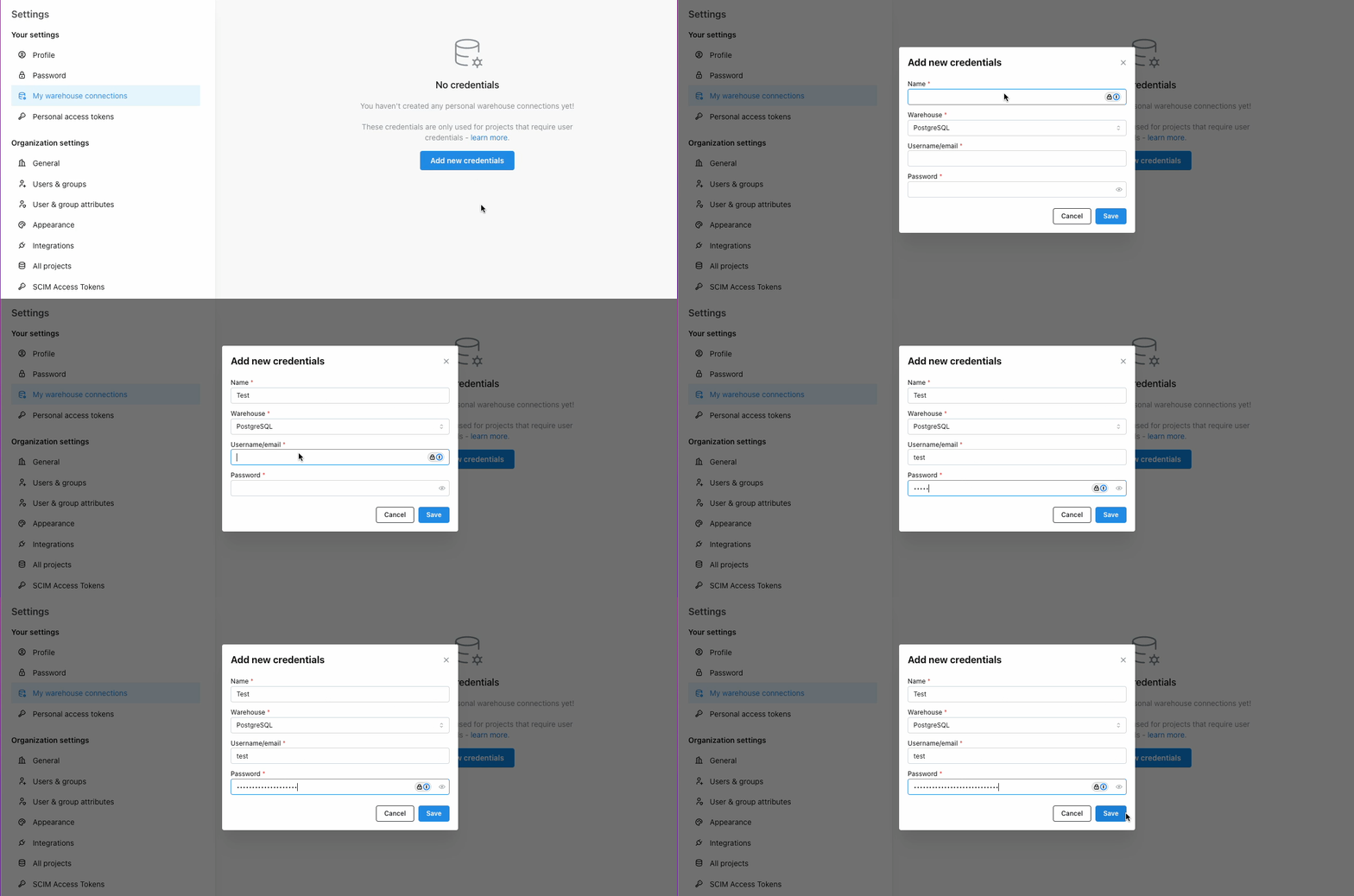
To configure your personal warehouse credentials:- Navigate to your user settings by clicking on your profile in the top right corner
- Go to the “My warehouse credentials” section
- Enter your individual warehouse connection details
- Save your credentials
Supported authentication methods
Depending on your warehouse type, you can authenticate using different methods:Snowflake
- Sign in with Snowflake (OAuth): Use your Snowflake account to authenticate via OAuth. This requires your organization to have configured a Snowflake security integration. See Snowflake connection setup for details.
- Private Key: Authenticate using a private key file.
- Password: Use your Snowflake username and password.
Databricks
- Sign in with Databricks (OAuth): Use your Databricks account to authenticate via OAuth. This requires your organization to have configured a Databricks OAuth application. See Databricks connection setup for details.
- Personal Access Token: Use a Databricks personal access token.
BigQuery
- Sign in with Google (OAuth): Use your Google account to authenticate via OAuth.
- Service Account: Use a service account JSON key file.
Redshift
- Sign in with AWS: Use your AWS IAM Identity Center account to authenticate in the browser. This requires the project connection to be configured with AWS IAM Identity Center settings. See Redshift connection setup for details.
- AWS IAM (CLI credentials): Paste temporary AWS credentials from your CLI or SSO profile when the project requires personal warehouse credentials.
- Password: Use your Redshift username and password.
Other warehouses
For other warehouse types (Postgres, Trino, ClickHouse), authentication is typically done using username and password credentials.With agent identity on
When the agent identity feature flag is on, a personal warehouse credential can set sign-in fields only. The host, port, database, compute, TLS, SSH tunnel and policy settings always come from the project connection. Lightdash refuses to save a personal credential that sets any other field, and the error names the fields.
Lightdash refuses to save a BigQuery service account key file, and a Redshift IAM credential with a role but no AWS access key of your own.
Some saved credentials stop working when the flag turns on. Queries with them fail with: “Your saved warehouse credentials can no longer be used with this connection. Reconnect your credentials and try again.” Lightdash never falls back to the shared project credentials. Reconnect your credentials under Settings → My warehouse connections. This affects:
- A Databricks sign-in saved without a workspace host, or for a different workspace host than the connection.
- A Databricks credential that uses a service principal (machine-to-machine) sign-in.
- A Redshift IAM credential that has a role but no AWS access key of your own.
- An Athena credential that has a session token.
- A credential for a different warehouse type than the project connection.
- A MotherDuck token used with a DuckDB connection that is not MotherDuck.