

Available to all Lightdash Cloud users.
- Browse and understand your data models
- Find relevant metrics and dimensions
- Run queries and generate visualizations
- Leverage your AI agents’ domain expertise and verified answers
- Switch between different projects seamlessly
- Respect your data governance and access controls
MCP respects all your existing Lightdash permissions and user attributes. MCP
clients can only access the data that your user account has permission to
view.
Get started
Setting up MCP is quick and straightforward. You can connect your AI assistant to your Lightdash instance in just a few minutes.Prerequisites
- A Lightdash Cloud account or Enterprise account with MCP enabled
- An MCP-compatible AI assistant (e.g., Claude.ai, Claude Desktop, ChatGPT, OpenAI Codex)
Network requirements
If your organization uses a corporate firewall, VPN, or internet security tool, the following domains must be allowlisted for MCP to work correctly:| Domain | Purpose |
|---|---|
<your_instance_name>.lightdash.cloud | Lightdash API and OAuth authentication |
claudemcpcontent.com | Used by Claude to render visual content (charts, tables) from MCP connectors |
Installation
Claude.ai (Web & Desktop Apps)
Set up MCP in the Claude.ai web app, and it will automatically sync to your Claude Desktop app after restart.Setup instructions
Setup instructions
-
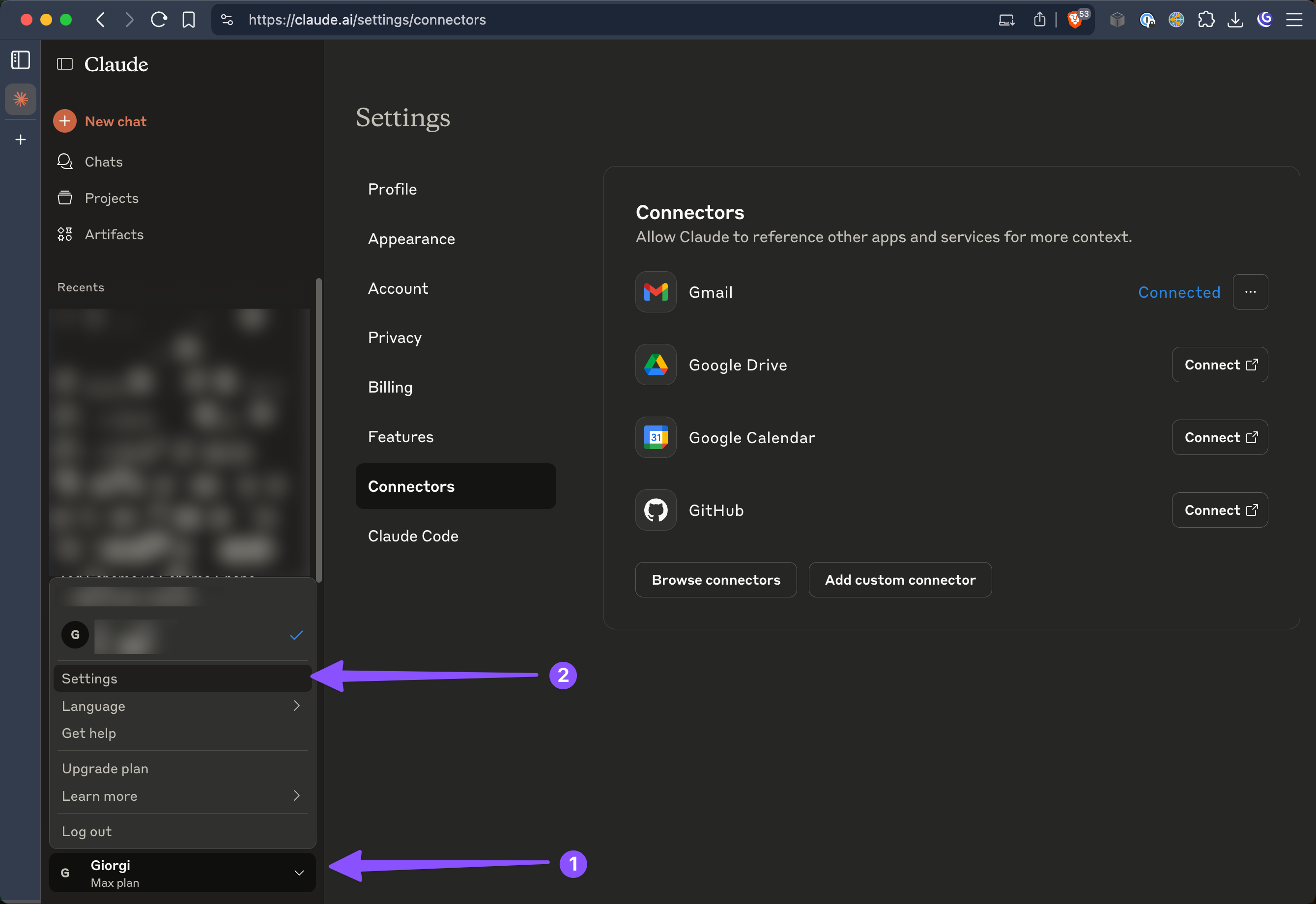
Access Settings in Claude.ai
Navigate to your profile menu (bottom-left corner) and select Settings.
-
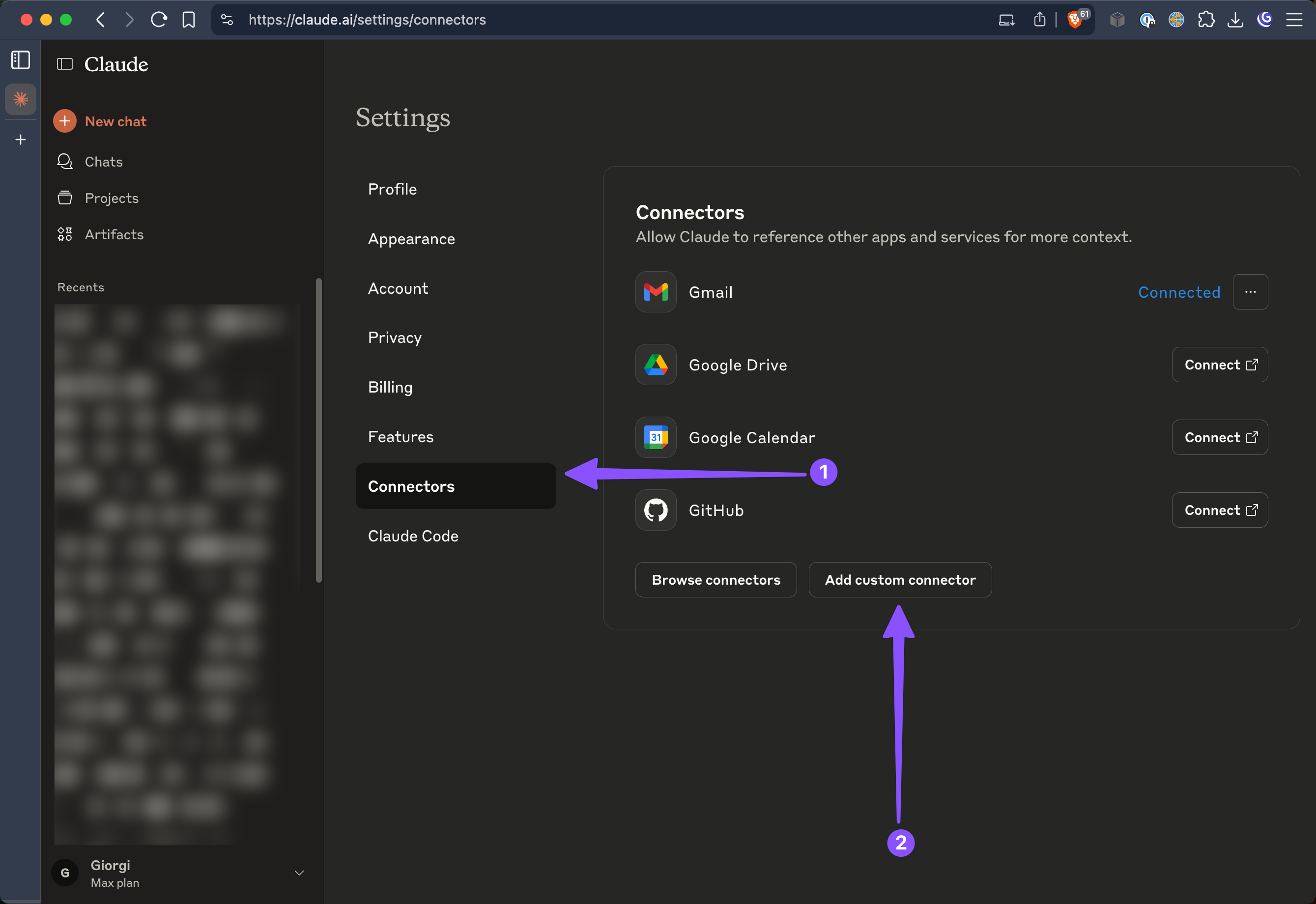
Add Custom Connector
In the Settings menu, select “Connectors” from the sidebar, then click “Add custom connector”.
-
Configure Connection
Fill in the connection details with your Lightdash instance information.
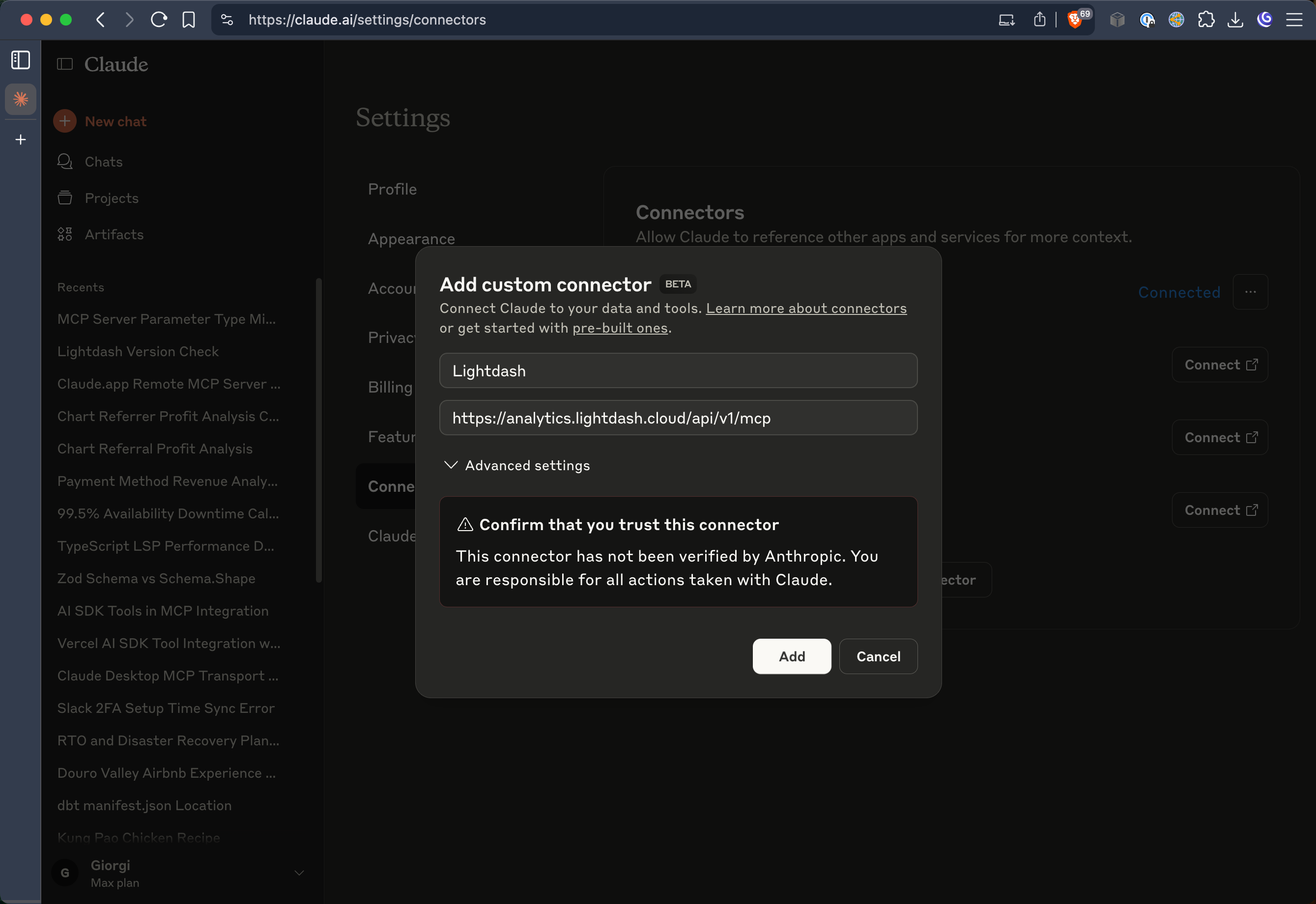
- Name: Lightdash (or any name you prefer)
- URL:
https://<your_instance_name>.lightdash.cloud/api/v1/mcp
-
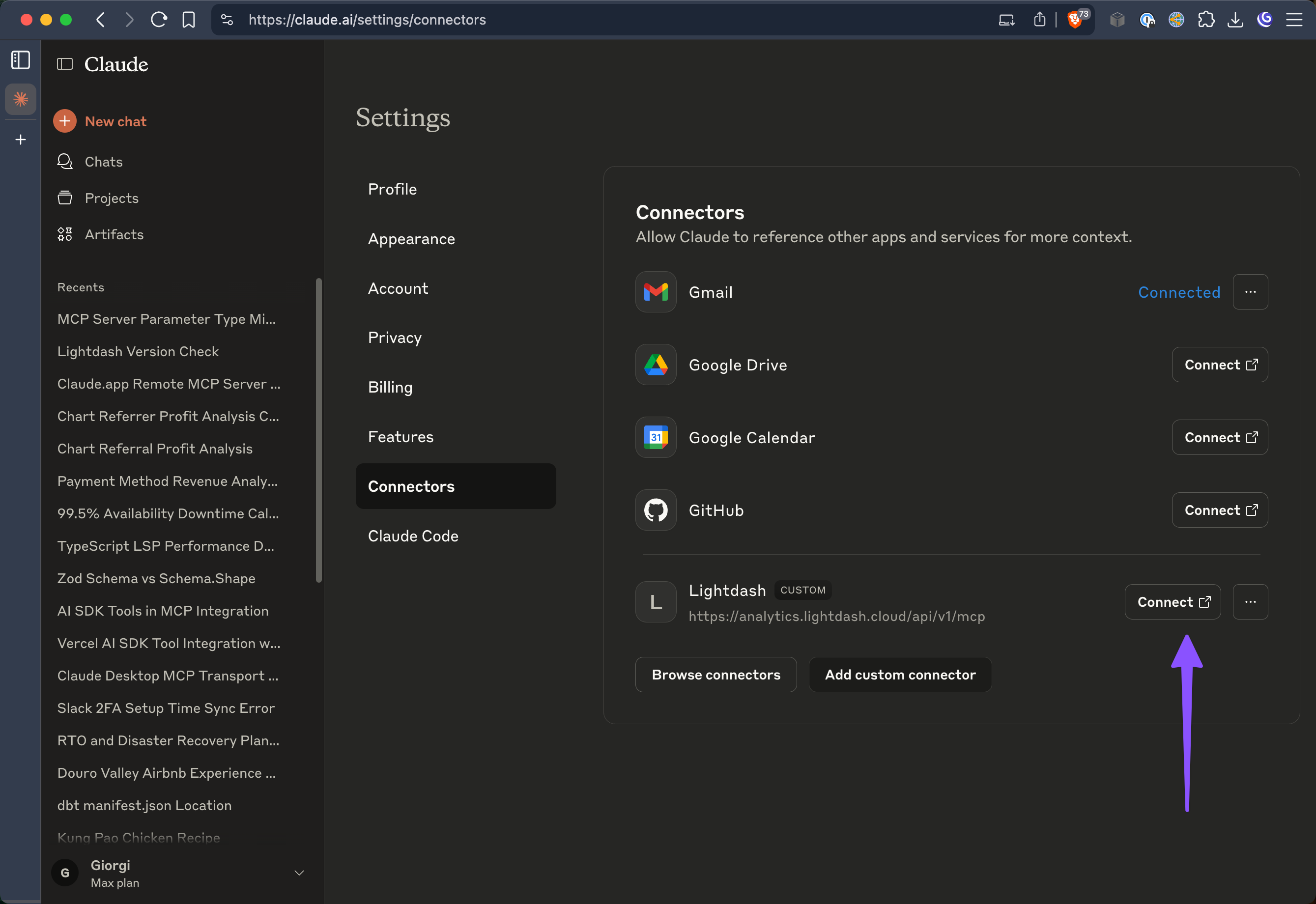
Connect and Authenticate
Click the “Connect” button to initiate the authentication process.
-
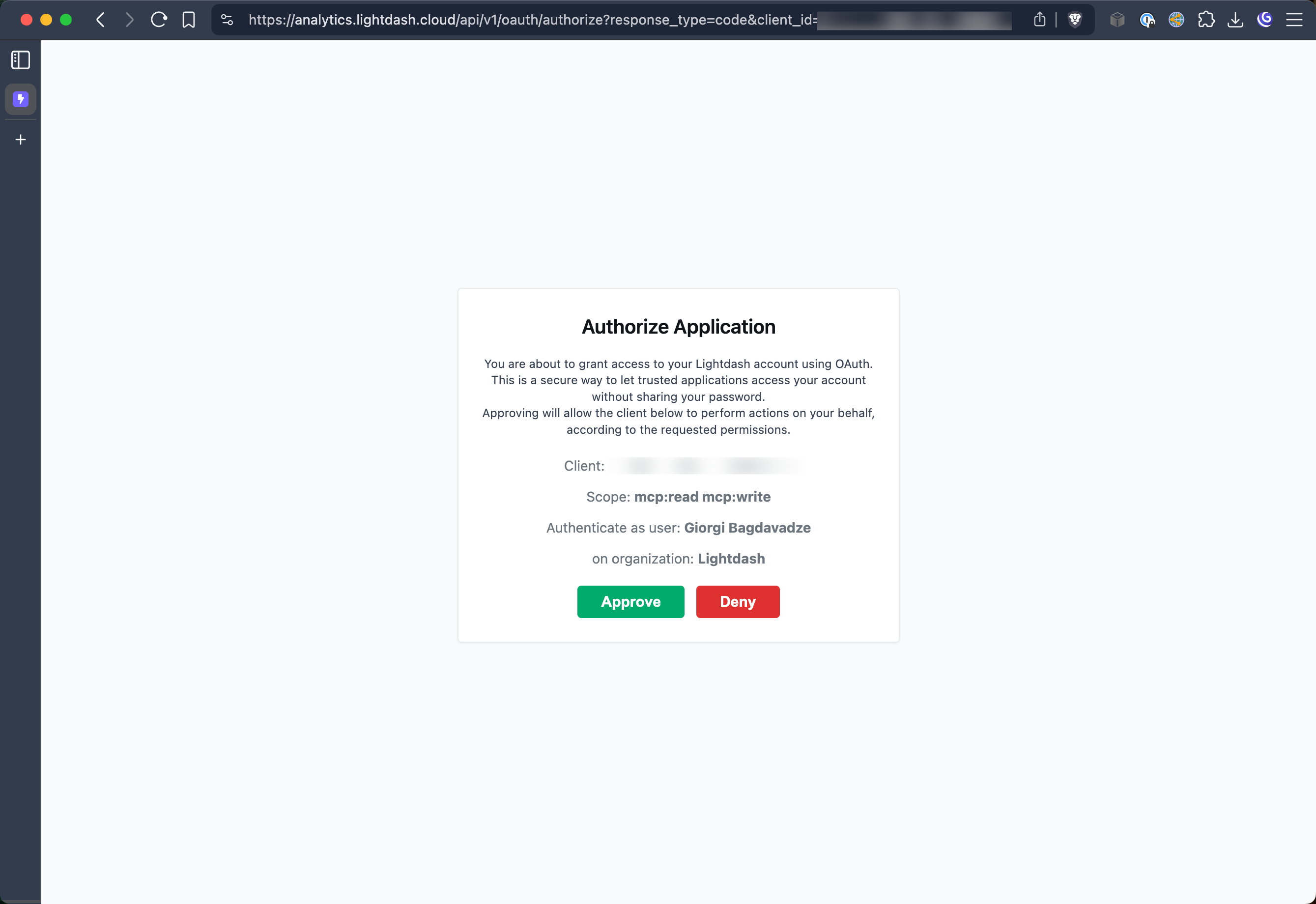
Complete OAuth Flow
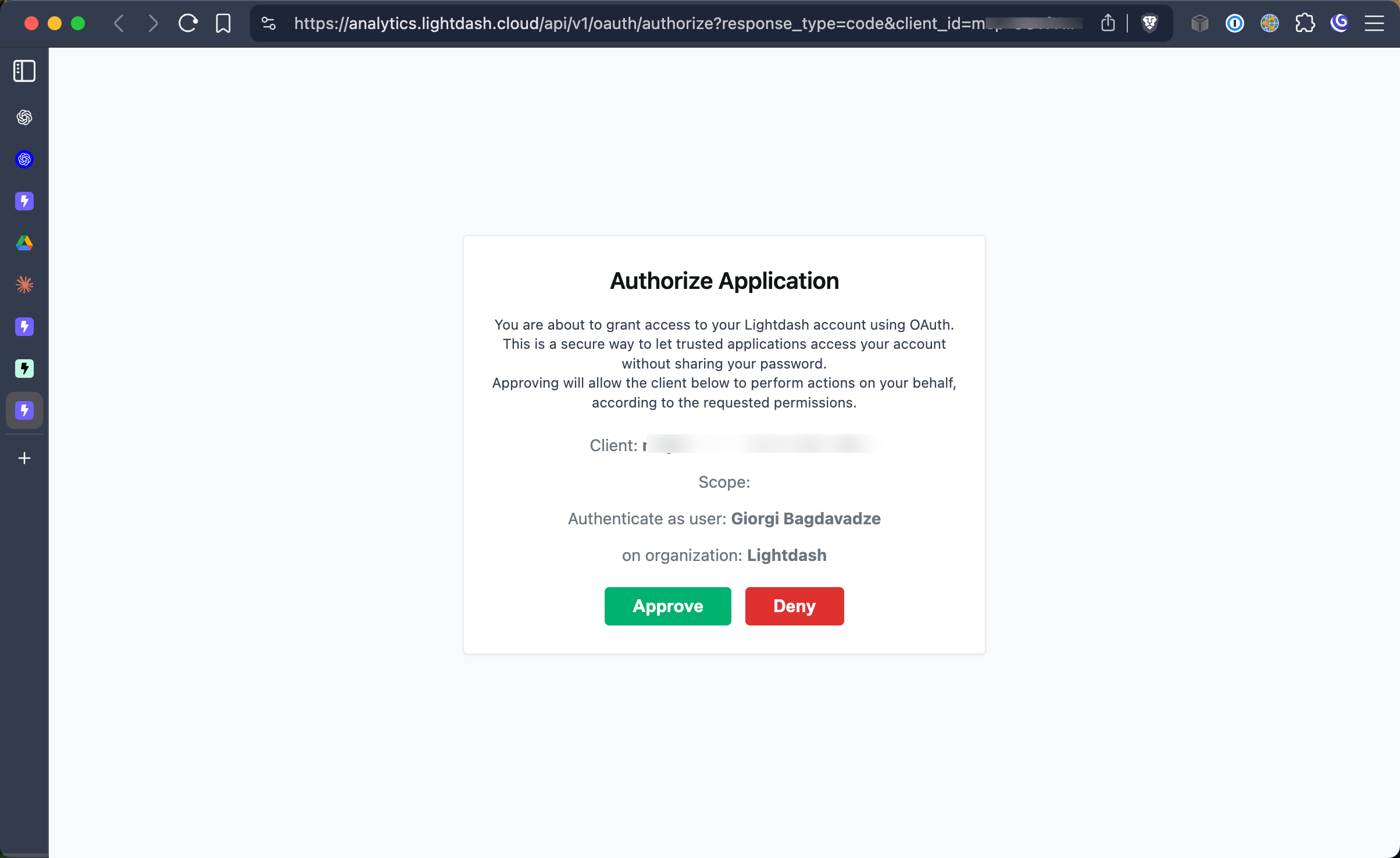
Log in to your Lightdash account and approve the connection when prompted.
-
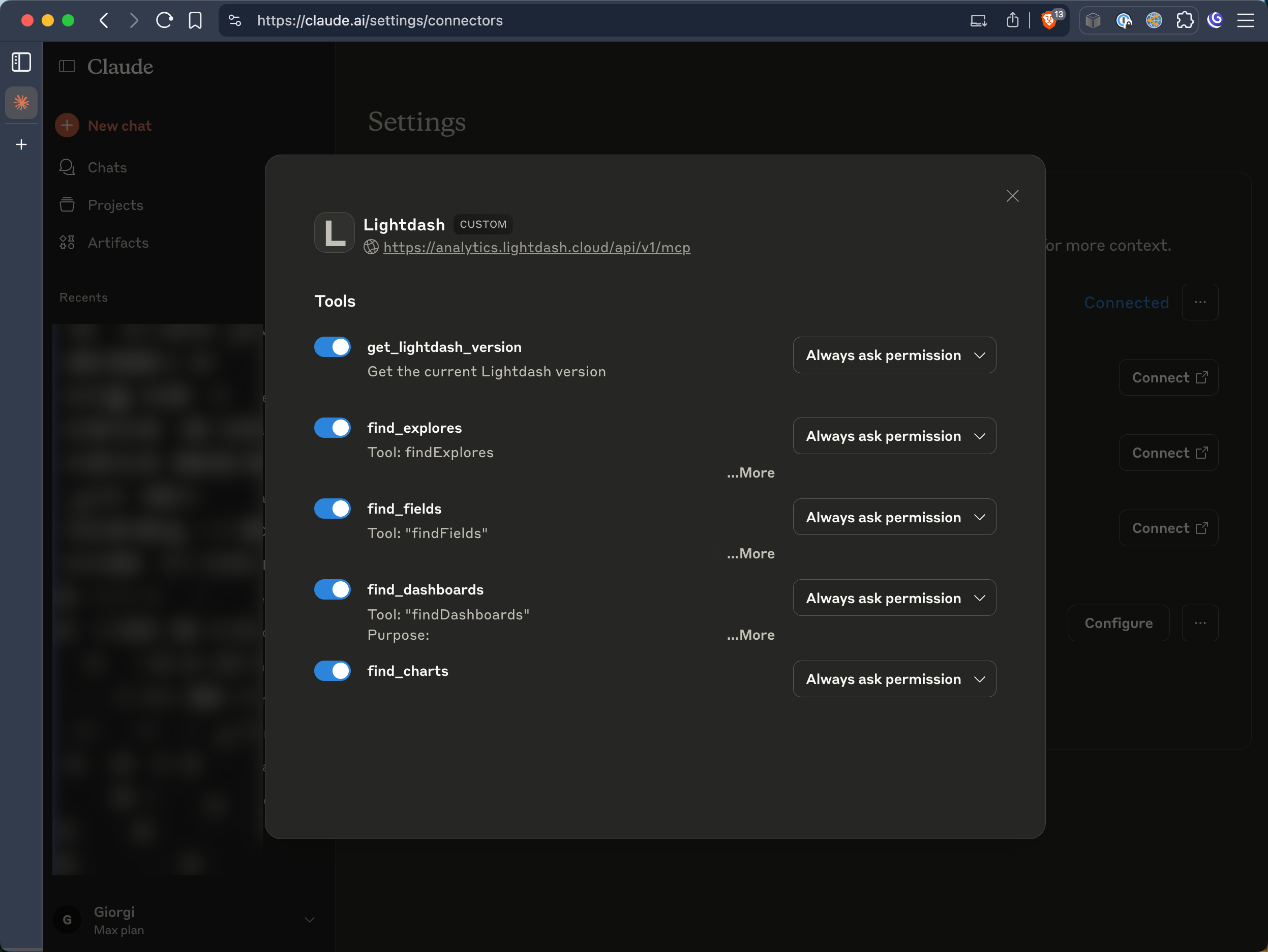
Configure Permissions (Optional)
Optionally configure which MCP tools Claude can access and set any additional permissions.
ChatGPT (Web App)
ChatGPT support for MCP is coming soon! Stay tuned for updates.OpenAI Codex
Setup instructions
Setup instructions
- Navigate to Settings Go to Settings > MCP Servers and click Add Server.
-
Configure Connection
Select Streamable HTTP as the transport type and enter your Lightdash MCP URL.
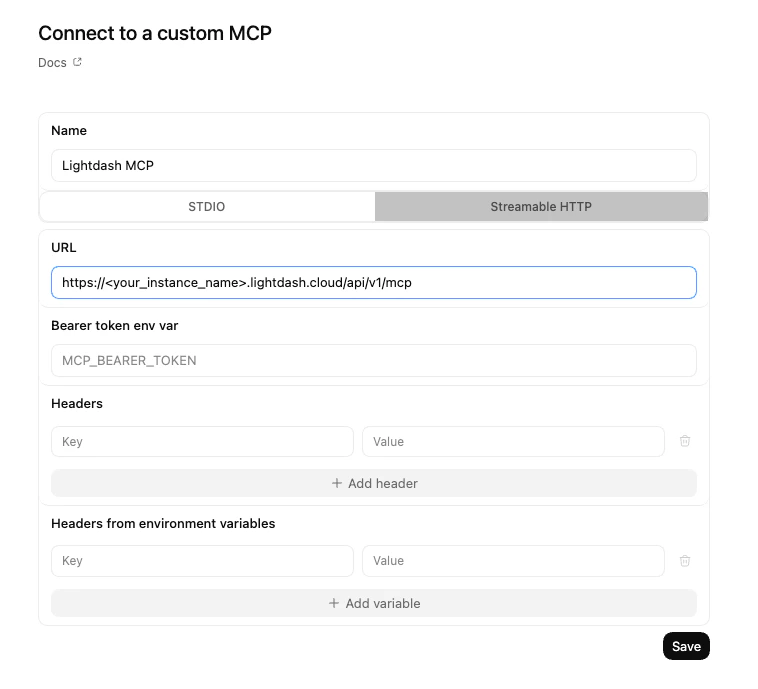
- URL:
https://<your_instance_name>.lightdash.cloud/api/v1/mcp
- URL:
-
Authenticate
Once the server is created, an Authenticate option will appear in the MCP Servers list. Click it to complete the OAuth flow with your Lightdash account.

Claude Code CLI
For developers using Claude Code CLI:<your_instance_name> with your actual Lightdash instance name.
Setup instructions
Setup instructions
-
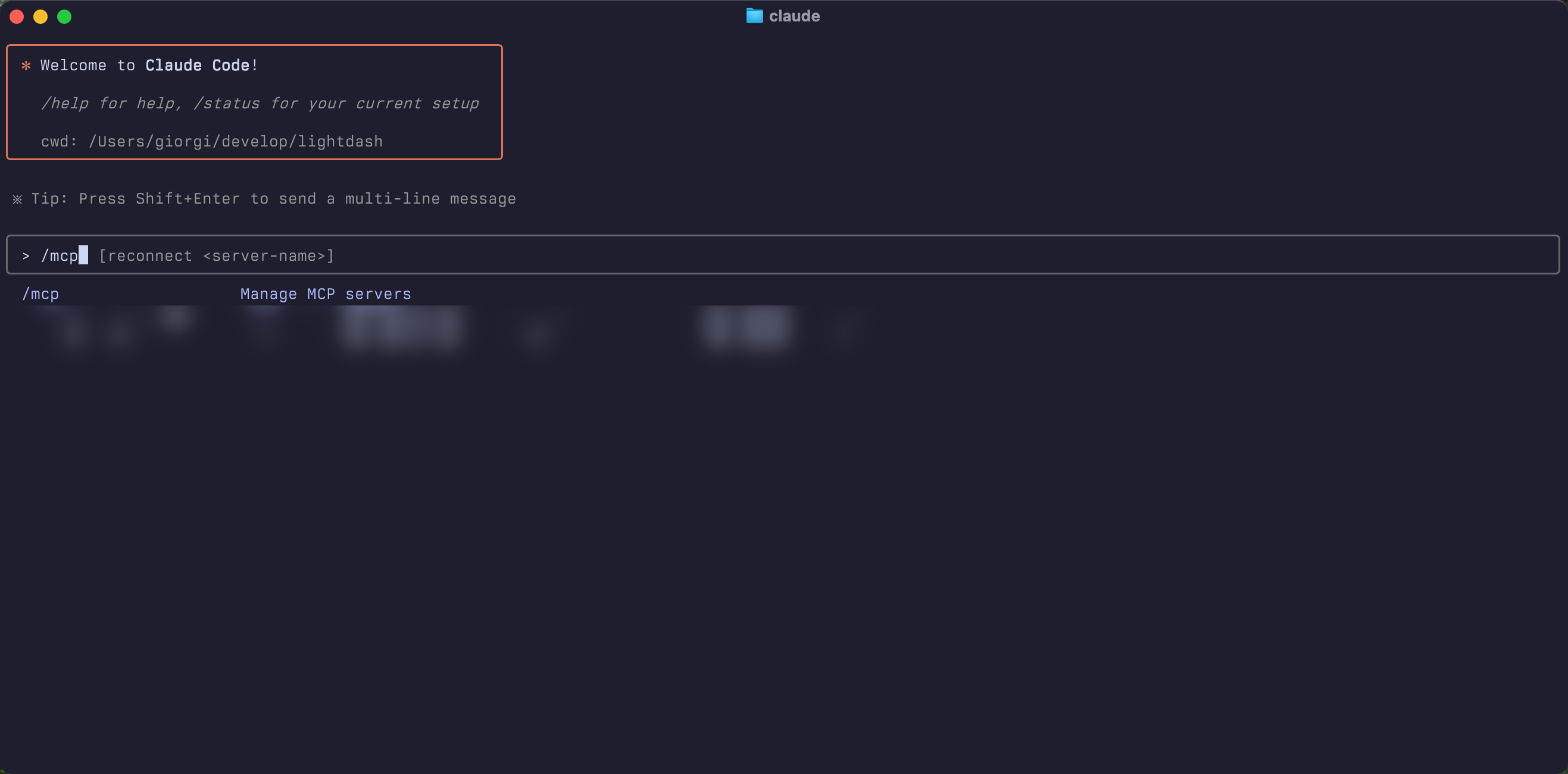
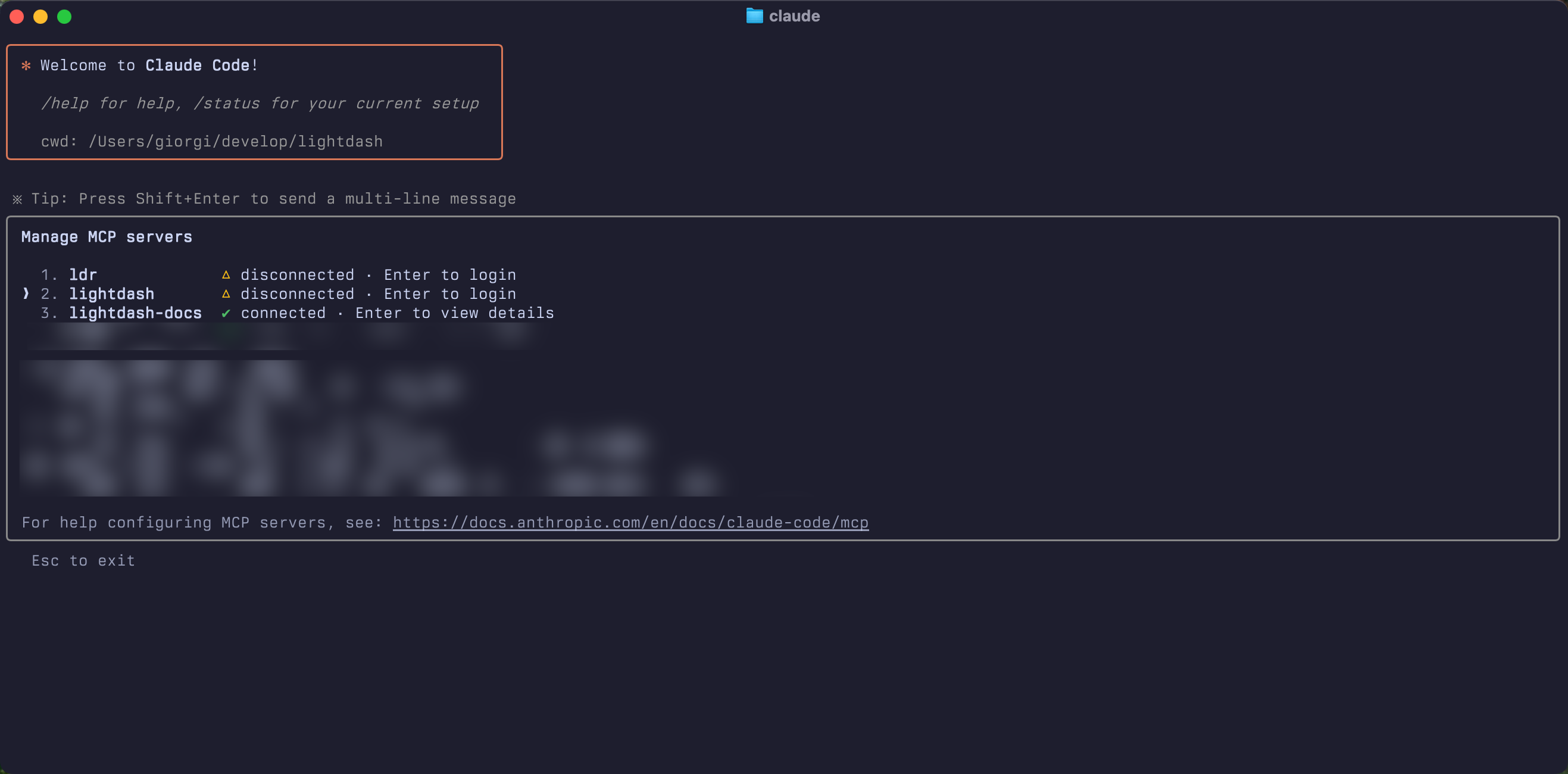
Use the /mcp command in Claude Code
-
Select Lightdash from the list
-
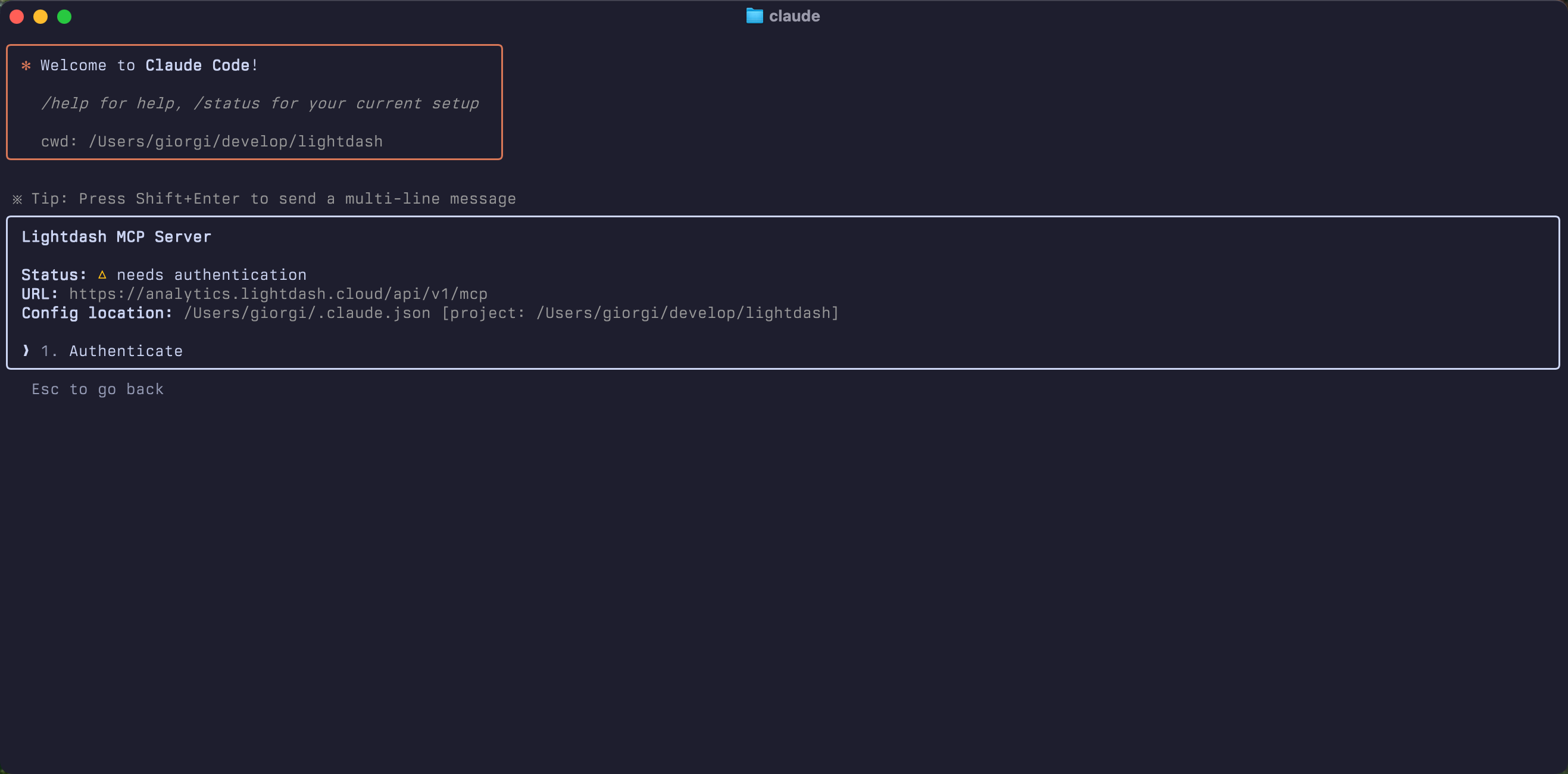
Authenticate with Lightdash
-
Complete OAuth Flow
-
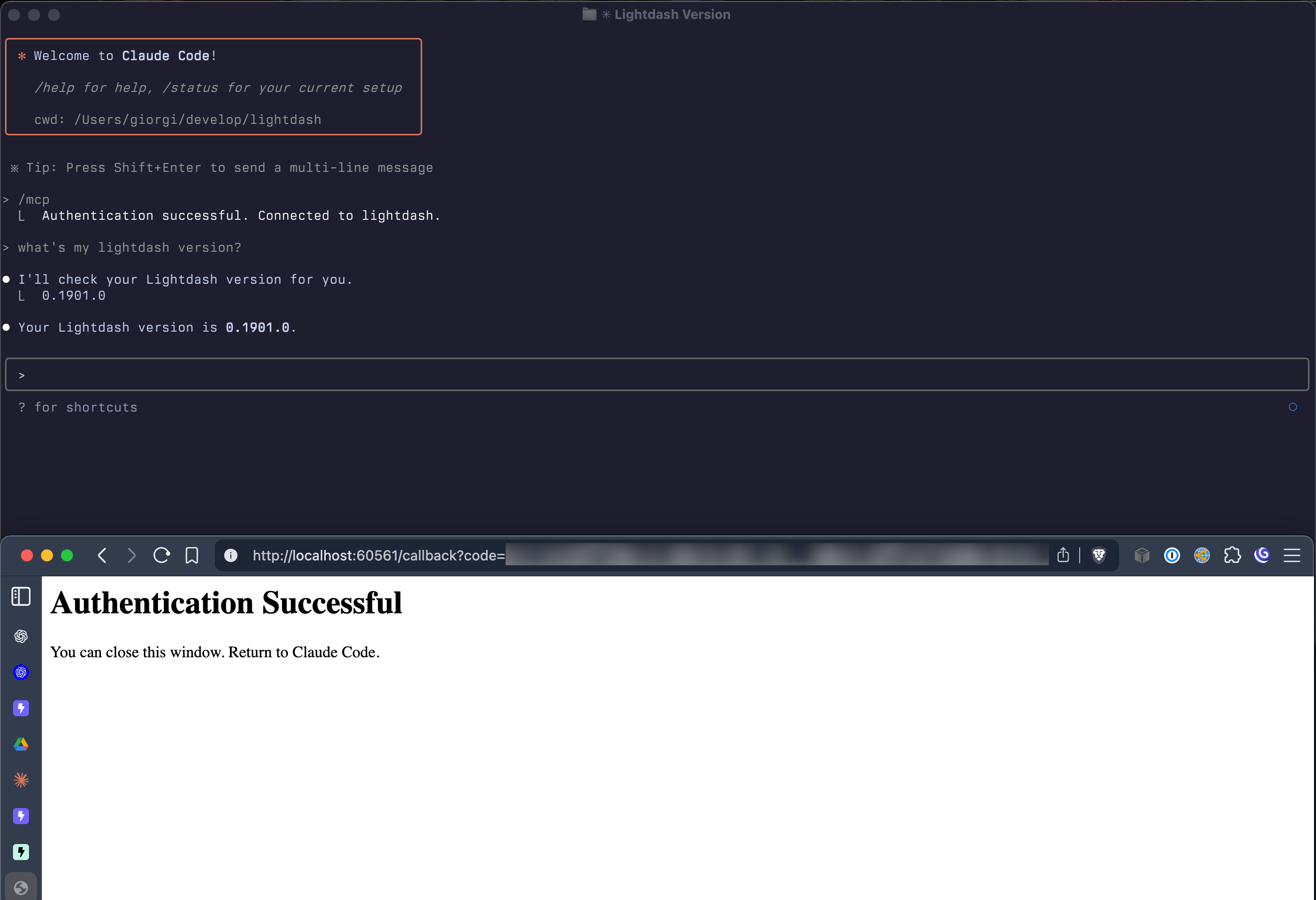
Start using MCP
Cursor Editor
Navigate to Cursor Settings > MCP & Integrations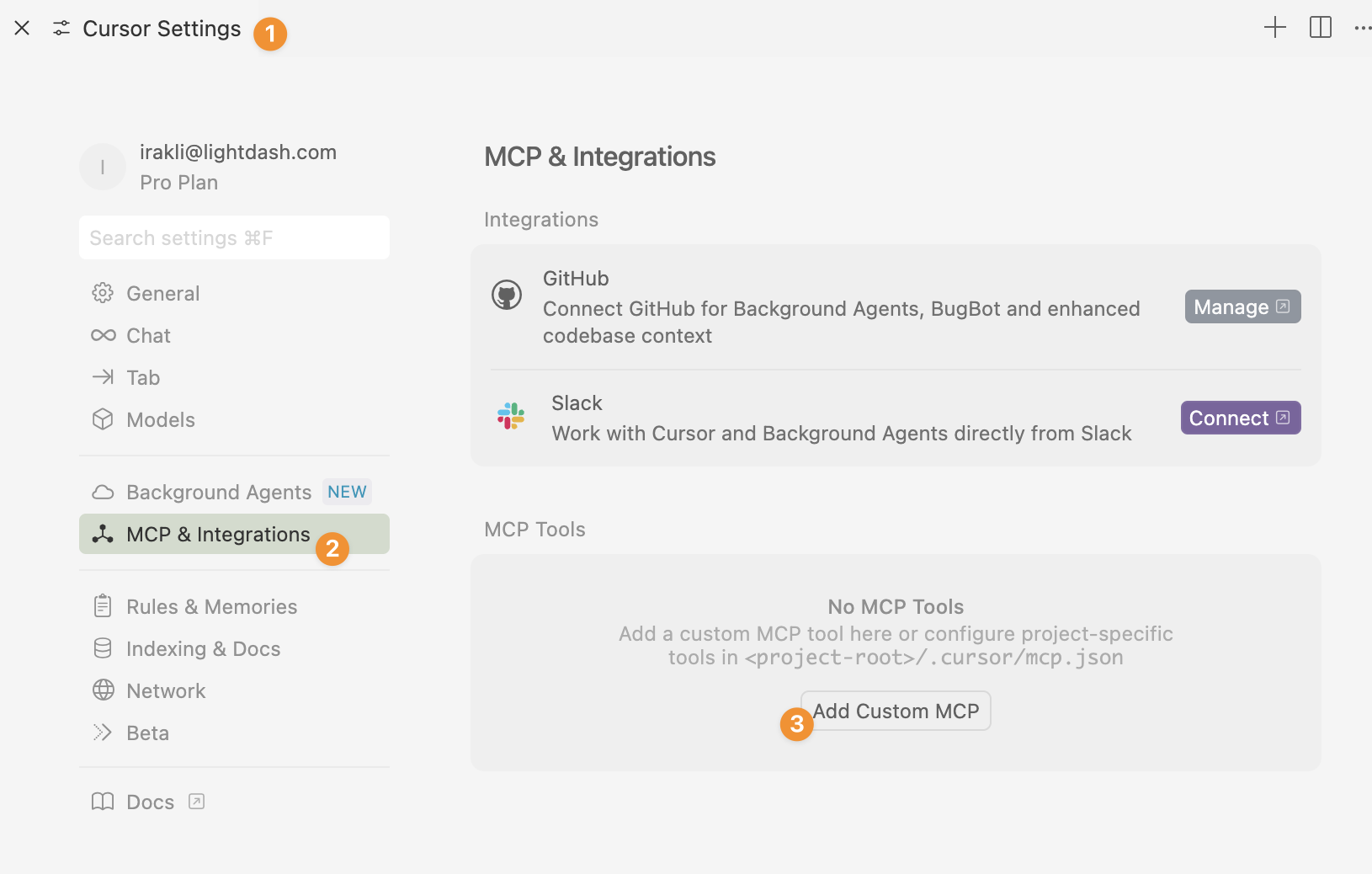
Custom Integration (For Developers)
If you’re building your own agents or automated workflows, you can integrate directly with Lightdash MCP:- Transport: Lightdash MCP exposes a StreamableHTTP transport endpoint at
https://<your_instance_name>.lightdash.cloud/api/v1/mcp - Debugging: Use
@modelcontextprotocol/inspectorto inspect and debug the MCP connection - Authentication: Requires OAuth 2.0 flow for secure authentication
- Documentation: See the MCP specification for implementation details
What it can do
Core capabilities
MCP provides AI assistants with powerful tools to interact with your Lightdash data:Project management
- List projects - View all accessible projects in your organization
- Set active project - Switch context between different projects (required before accessing any data)
- Get current project - Check which project is currently active
An active project must be set before MCP can retrieve any data. Your AI assistant will typically handle this automatically by listing available projects and asking you to select one.
Data exploration
- List explores - See all available data models in the current project at a glance
- Find explores - Search for relevant data models using natural language (e.g., “customer orders”)
- Find fields - Search for specific metrics and dimensions by business terms (e.g., “total revenue”, “order date”)
- Search field values - Look up valid values for a field, useful for building filters
- Find content - Search for existing charts and dashboards by name or description
Query execution
- Run metric query - Execute queries using your semantic layer’s metrics and dimensions, and generate visualizations (tables, bar charts, line charts, pie charts, and more)
- Run SQL - Execute arbitrary SQL queries directly against the project’s data warehouse. Useful for ad-hoc analysis or queries that don’t fit the explore-based model. Returns up to 500 rows by default (configurable up to 5,000).
Run SQL requires the
manage SqlRunner permission. The SQL is executed directly against your warehouse, so use the appropriate SQL dialect for your connection (e.g., PostgreSQL, BigQuery, Snowflake).Agent context
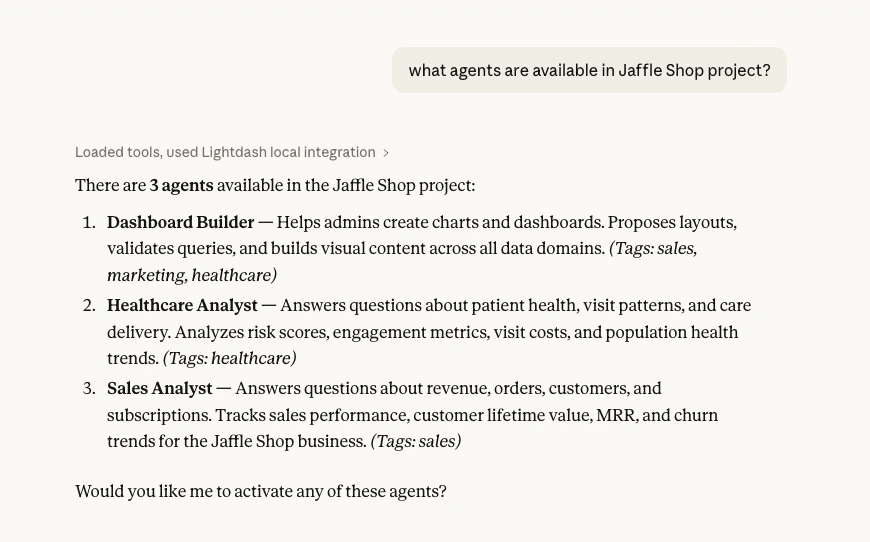
- List agents - Discover available AI agents and their areas of expertise
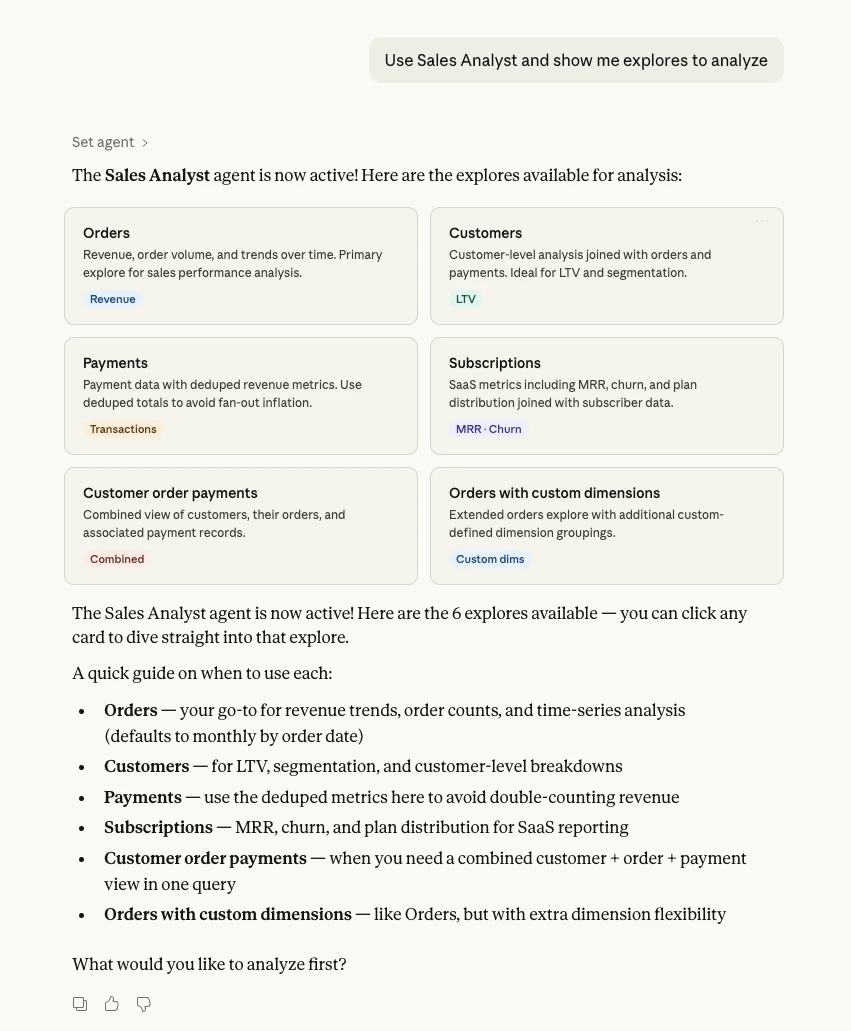
- Set agent - Activate an agent to scope your session to its explores, instructions, and verified answers
- Get current agent - Check which agent is active and view its full context
- Clear agent - Remove agent scoping and return to the full project context
Example conversations
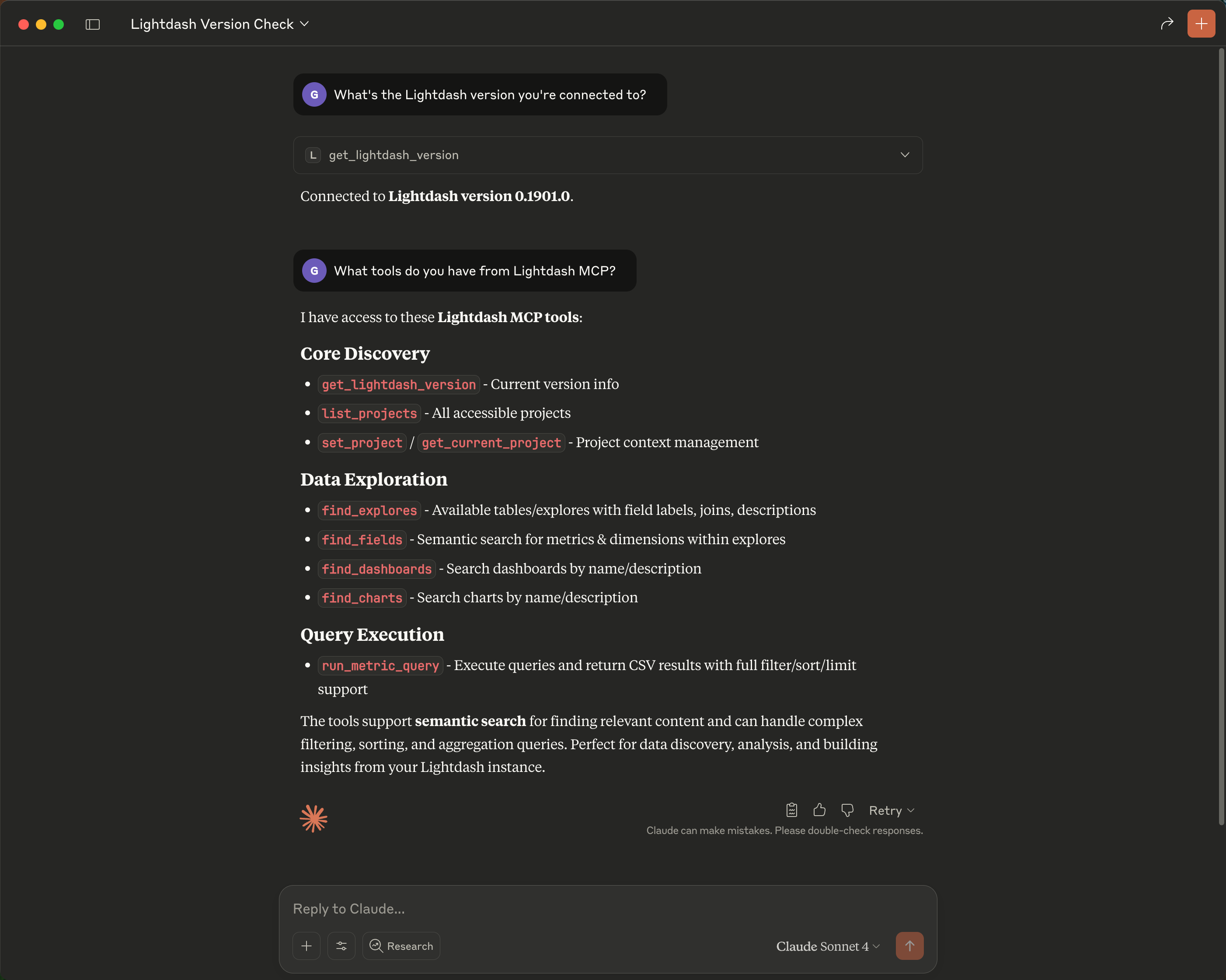
Here are some examples of how you can interact with AI assistants using MCP:Example 1: Verifying your MCP connection
After connecting, verify that the MCP integration is working by asking your AI assistant to list available tools. Prompt: “What Lightdash tools do you have access to?” The assistant will confirm the connection and list the available MCP tools, such aslist_projects, find_fields, run_metric_query, run_sql, and others. This is a quick way to verify that authentication succeeded and the MCP server is reachable.
See screenshot
See screenshot
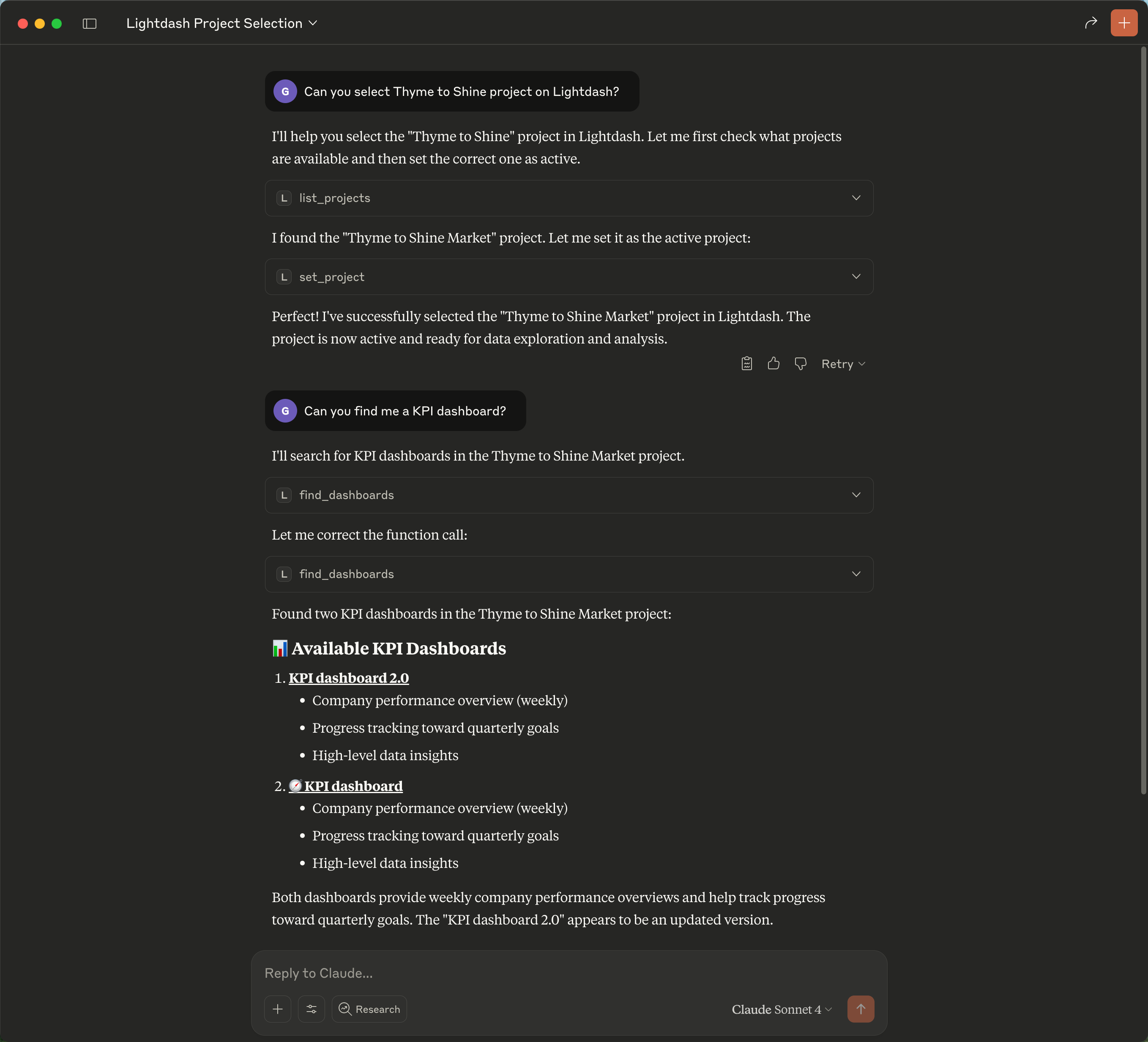
Example 2: Setting up a project and finding dashboards
Before querying data, you need to set an active project. Then you can search for existing dashboards and charts. Prompt: “What projects do I have access to? Set the Jaffle Shop project, then show me all dashboards related to revenue.” The assistant will:- Call
list_projectsto show your available projects - Call
set_projectto activate “Jaffle Shop” - Call
find_contentwith your search term to find matching dashboards and charts
See screenshot
See screenshot
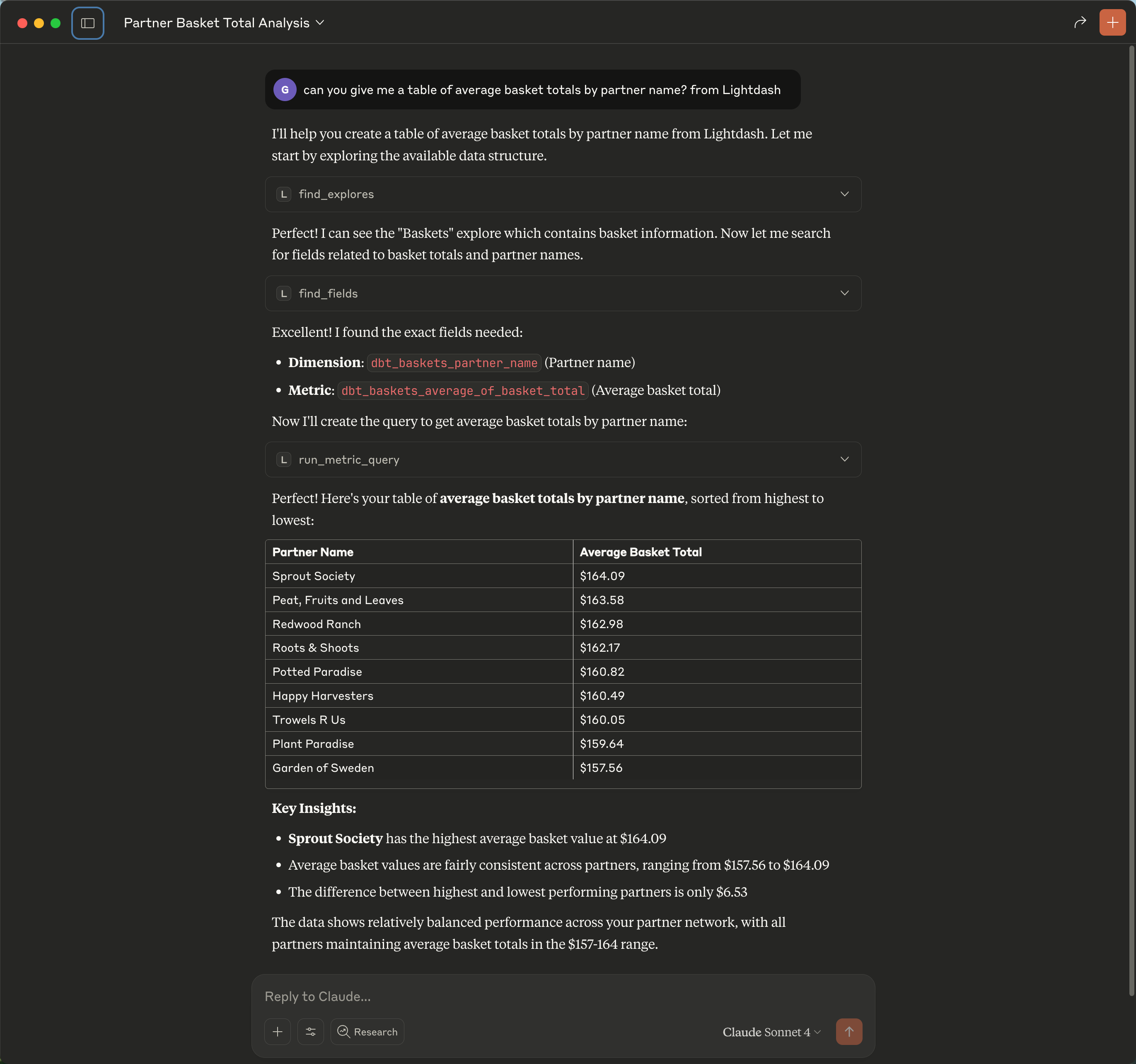
Example 3: Exploring data and running a metric query
Once a project is active, you can explore data models and run queries using your semantic layer. Prompt: “What metrics do we have for orders? Show me total revenue by month for the last 6 months as a bar chart.” The assistant will:- Call
find_fieldsto search for order-related metrics and dimensions (e.g.,orders_total_revenue,orders_order_date) - Call
run_metric_querywith the appropriate explore, metrics, dimensions, filters, and sort order to fetch the data and render a visualization
See screenshot
See screenshot
Using AI agent context
If your organization has Lightdash AI agents configured, you can reuse their configuration in your MCP sessions — so you get consistent guidance regardless of where you’re working.How is this different from Lightdash AI agents?
Lightdash AI agents are a fully managed experience inside Lightdash and Slack. They handle everything end-to-end: interpreting your question, picking the right data, running queries, and presenting results. With MCP, you can use Lightdash data in other contexts, but the AI assistant driving an MCP session doesn’t have the same specialized tuning that Lightdash AI agents provide out of the box. Agent context via MCP bridges that gap: it brings your agents’ domain knowledge into any MCP session.What you get from agent context
When you activate an agent in your MCP session, your AI assistant receives:- Specialized content: only the data models relevant to that agent’s domain
- Verified answers: curated example queries that demonstrate correct usage of the data model
- Custom instructions: domain-specific rules like “Always filter orders by status = ‘completed‘“
Example workflow
- Set your project with
set_project - Browse available agents with
list_agents(e.g., “Sales Analyst”, “Marketing Metrics”) - Activate an agent with
set_agentto load its context - Ask your questions — the agent’s context automatically guides queries
See screenshot: listing agents
See screenshot: listing agents
See screenshot: setting agent and viewing explores
See screenshot: setting agent and viewing explores
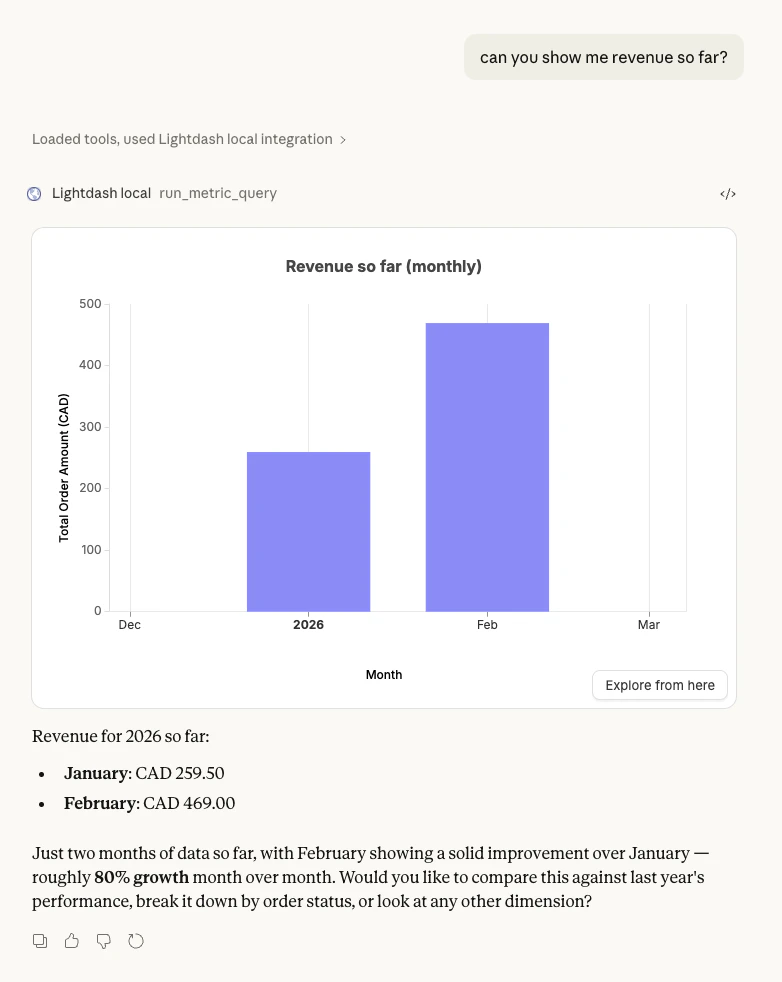
orders explore, include a monthly time dimension, and format values in CAD — all without you specifying these details, because the agent’s instructions guide the query.
See screenshot: querying with agent context
See screenshot: querying with agent context
Built-in prompt
The Lightdash MCP server includes a built-inlightdash-analyst prompt with guidelines for querying data effectively. MCP clients that support prompts can use this automatically, so you don’t need to configure custom instructions manually.
When an AI agent is active, the prompt automatically adapts to include the agent’s context.
Best practices
To get the most value from MCP, ensure your Lightdash data is well-organized and documented. See our AI agents best practices guide for detailed recommendations on:- Organizing and naming your data models
- Writing effective documentation and AI hints
- Optimizing for AI assistant performance
- Security and permissions considerations
Lightdash Docs MCP
In addition to the Lightdash data MCP above, we also offer a Docs MCP endpoint that gives AI coding agents access to the complete Lightdash documentation. This is free for everyone—including open source users and all cloud tiers.Benefits
The Docs MCP helps AI agents:- Understand Lightdash concepts, configuration, and best practices
- Generate accurate YAML configurations for metrics and dimensions
- Troubleshoot issues using official documentation
- Stay up-to-date with the latest Lightdash features
Setup
The Docs MCP endpoint is available athttps://docs.lightdash.com/mcp. Add it to your AI coding tool:
- Cursor
- Claude Code
- Windsurf
Add to your
.cursor/mcp.json:Availability
The Docs MCP is free for everyone:- Open source users
- Cloud Pro
- Cloud Enterprise
FAQ
Q: Does Lightdash MCP store my data or query results? A: No, Lightdash MCP does not store any query results, conversation responses, or data. MCP acts as a bridge that allows AI assistants to access your Lightdash metadata and execute queries in real-time. The MCP consumer (your AI assistant) is responsible for any data storage. Depending on which AI assistant you use, data might be shared with third parties according to their privacy policies. Q: Can multiple team members use MCP? A: Yes, each team member can set up their own MCP connection with their individual Lightdash credentials. Each connection respects that user’s specific permissions and access controls. Q: Can MCP modify my data or dashboards? A: No, MCP cannot modify your Lightdash configuration, dashboards, or underlying data. It can search, explore your data models, run metric queries, and execute SQL SELECT queries — but all operations are read-only. Q: Claude returns data as text but no visual chart is displayed. What’s wrong? A: Claude uses the domainclaudemcpcontent.com to render visual content from MCP connectors. If this domain is blocked by your corporate firewall, VPN, internet security tool, or a browser extension (like an ad blocker), Claude will fall back to text-only output. See Network requirements above for the full list of domains to allowlist.